

[ad_1]
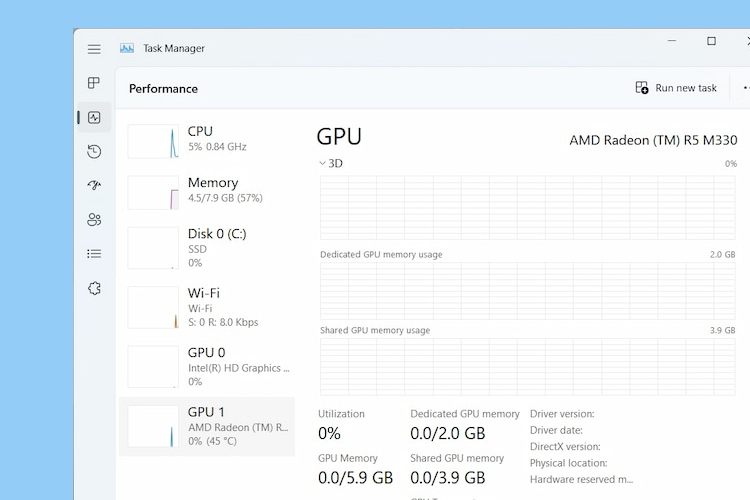
If you have bought a new laptop running Windows 11, you must want to check the graphics card details to know whether it can handle your gaming or creative needs. You can check out the graphics card memory, along with the GPU temperature and the real-time performance of the graphics card. All of this information will help you gauge the capability of your GPU, so that when you are gaming or using an intensive program like a video editor, you will be aware of its limit. So on that note, let’s learn how to check your graphics card on Windows 11.
Check What Graphics Card You’re Using on Windows 11 (2022)
Here, we have included five different methods to check what GPU you are using on your Windows 11 PC. From GPU temperature to VRAM, we have mentioned ways to check everythign in Windows 11. So let’s dive in
Check Your Graphics Card on Windows 11 Using the Task Manager
On Windows 11, you can easily find information about your graphics card from the Task Manager. You just need to open the Task Manager in Windows 11 and move to the “Performance” tab. Here is how to go about it:
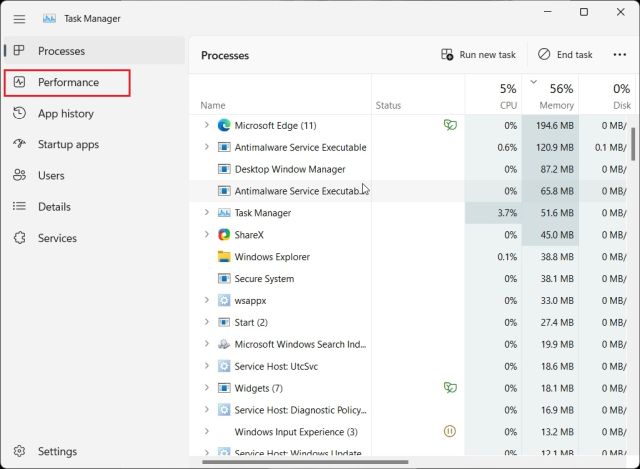
1. Use the Windows 11 keyboard shortcut “Ctrl + Shift + Esc” to open the Task Manager. Here, move to the “Performance” tab. If you are on the redesigned Task Manager, you will find it under the hamburger menu on the left.
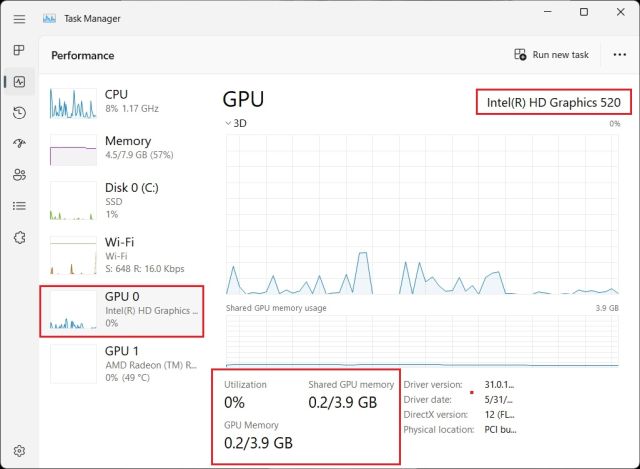
2. Now, move to the GPU section to get detailed information. Here, “GPU 0” means integrated GPU, and “GPU 1” is the external GPU. If I go to the “GPU 0” section, you will find the name of your integrated graphics card in the top-right corner along with GPU temperature and memory information.
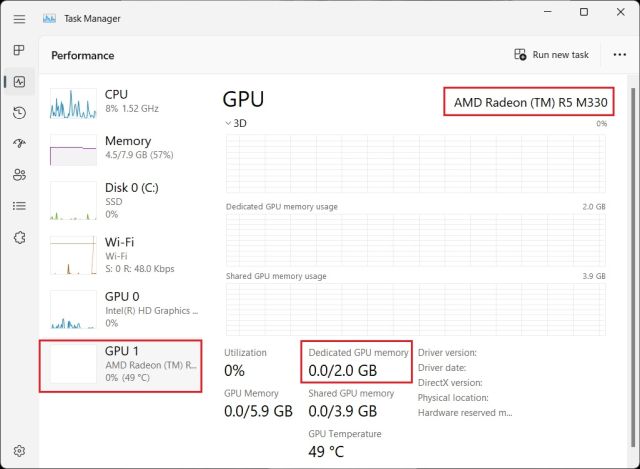
3. Moving to “GPU 1” shows my external GPU card, and you can find the GPU’s name in the top-right corner here as well. Right below, you can find the “Dedicated GPU memory” of the graphics card on Windows 11. This is how you can check which graphics card you have on Windows 11 along with graphics memory.
Check Your Graphics Card on Windows 11 From Windows Settings
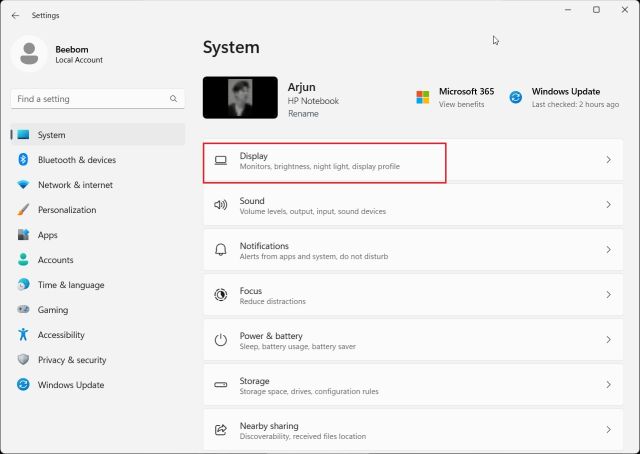
1. Apart from the Task Manager, you can also check your graphics card details on Windows 11 from the Settings page. Press “Windows + I” to open the Settings page and move to the “Display” section under “System” from the right pane.
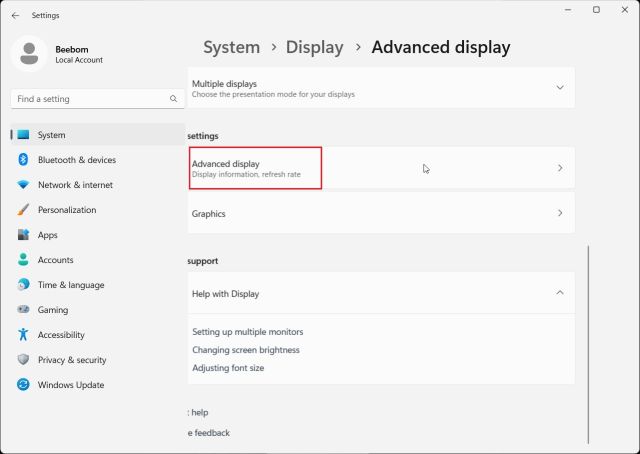
2. Next, click on “Advanced display“.
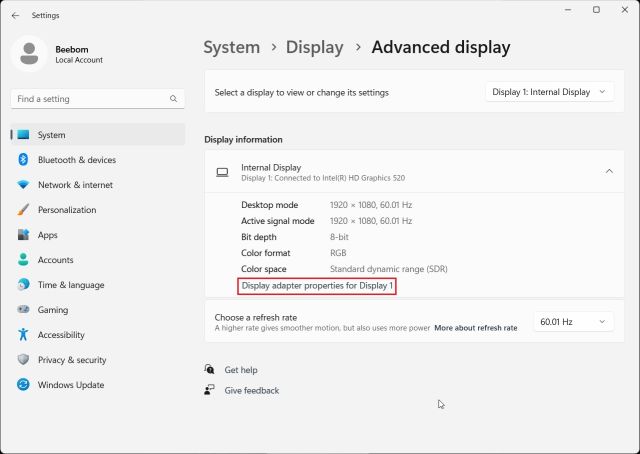
3. After that, click on “Display adapter properties for Display 1“.
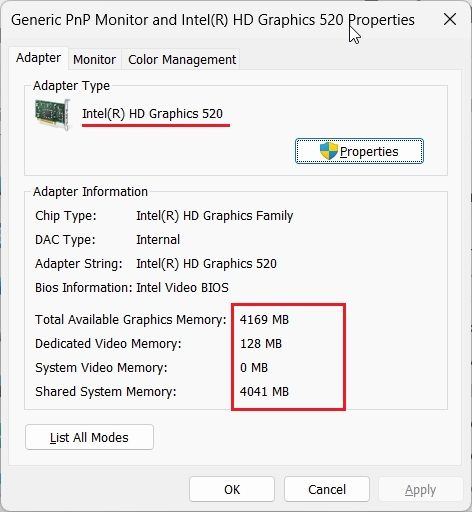
4. This will show the integrated graphics card details, along with the memory information of your Windows 11 PC. If you are using a desktop with only an external graphics card, then it will show those details here.
Check Your Graphics Card on Windows 11 From DirectX Diagnostic Tool
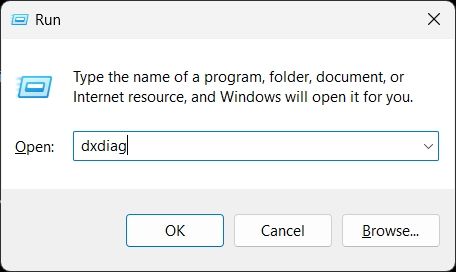
1. Windows 11 also lets you check the GPU details from the built-in DirectX Diagnostic Tool. Just press “Windows + R” to open the Run prompt. Here, type dxdiag and hit Enter.
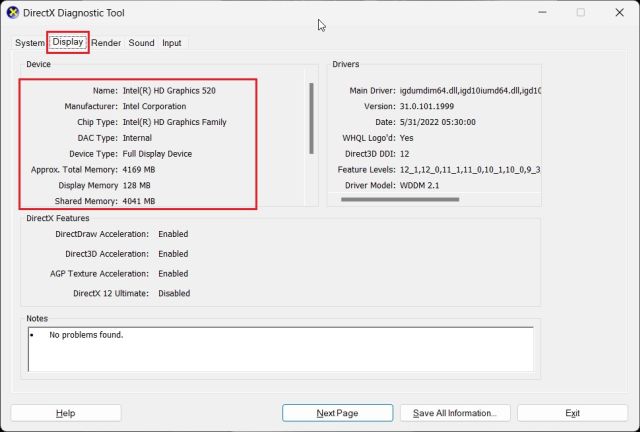
2. This will open the DirectX Diagnostic Tool. Now, move to the “Display” tab, and you will find details about the integrated graphics card. You can find the GPU name and memory information here. You will only see the dedicated GPU information here if you are using a desktop computer.
3. To check the external GPU card on Windows 11laptops, move to the “Render” tab, and you will find the GPU name here. The “Display Memory” is the actual graphics card memory of the GPU.

Check Your GPU Card on Windows 11 From the Device Manager
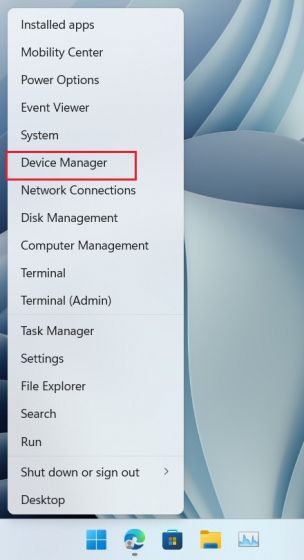
1. Graphics card details are also available on Windows 11 through the Device Manager. Press “Windows + X” to open the Quick Links Menu and click on “Device Manager“.
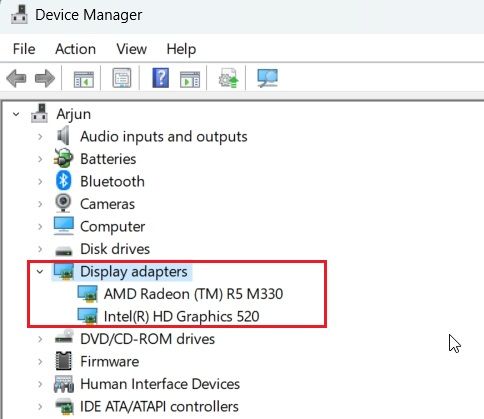
2. Next, double-click on “Display adapters” to expand the menu. Here, you will find the name of the graphics cards available on your PC. For example, I have an Intel integrated GPU and an AMD Radeon GPU on my laptop.
Check Your Graphics Card on Windows 11 From System Information
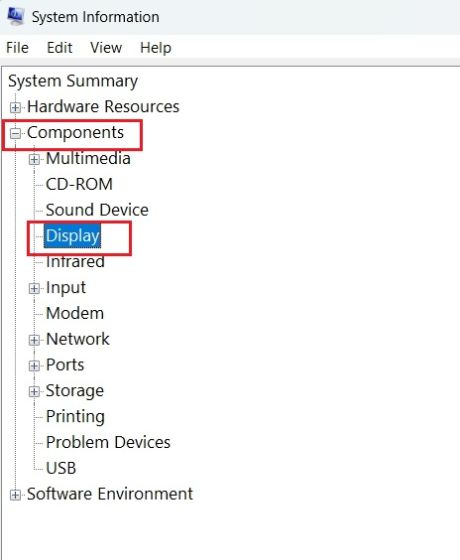
1. Lastly, you can identify the graphics card details for your Windows 11 PC using the System Information app. Press the Windows key once and type “system”. Now, open “System Information“.

2. Next, navigate to Components -> Display in the left sidebar.
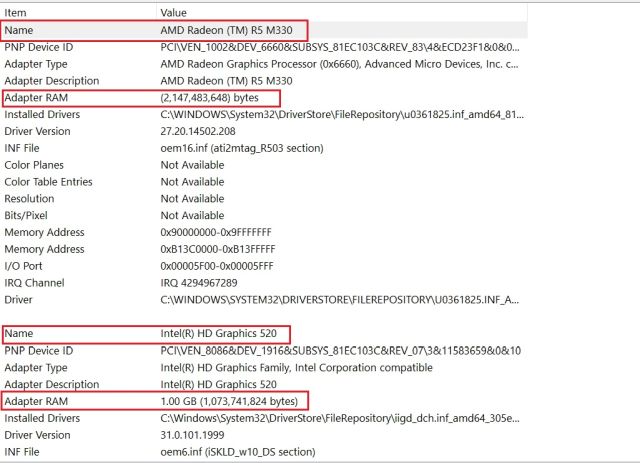
3. On the right side, you can check the information of both internal and dedicated graphics cards on Windows 11. Along with the GPU name, you can also find “Adapter RAM“, which is basically your graphics card memory.
Check GPU Memory on Windows 11
So these are the five ways you can use to check the GPU name and memory on Windows 11. I have included steps for both integrated and external GPUs along with how to check the graphics card memory on Windows 11 PCs. Anyway, that is all from us. If you want to check the CPU temperature on your Windows 11 computer, follow our guide linked here. And to stress test the GPU on your Windows PC, head over to our article to find the curated list of programs. Finally, if you have any questions, let us know in the comment section below.
[ad_2]
Source link





