


[ad_1]
Here is the simplest way to change your name on the PS4.
Anyone who owns a PS4 account may remember the first time they were prompted to create their very own Online ID, the name that friends and family can find you by on the platform.
As with many things, however, you may decide that the username you chose all those years ago doesn’t quite reflect you anymore. Whether it’s a show you’re no longer into or you just want to change up the name you’ve been sporting for all these years, changing your Online ID is easier than you may think.
It is important to note that while the first name change is free, you will have to pay a small fee of £7.99 each time you want to change your Online ID after that, so you might want to think long and hard about what you want your new name to me.
Keep reading to find out how you can change your Online ID in just a few simple steps.
What you’ll need:
The Short Version
- Log into your PS4 account
- Click on Settings
- Click on Account Management
- Click on Account Information
- Press Profile
- Click on Online ID
- Press I Accept
- Press Continue
- Enter your email and password
- Choose your new name and press Confirm
-
Step
1Log into your PS4 account
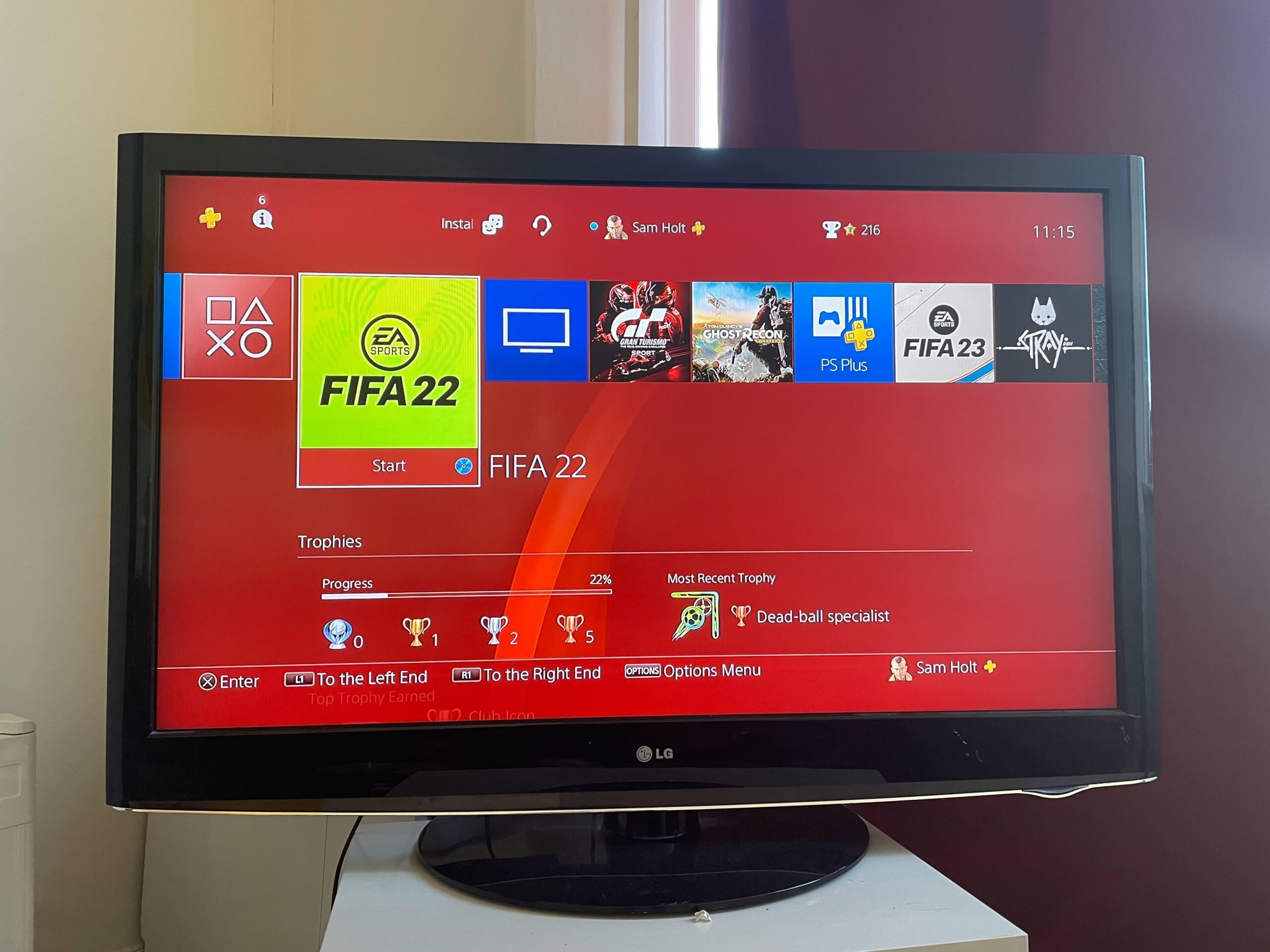
Turn on your PS4 and select your account to get started.
-
Step
2Click on Settings
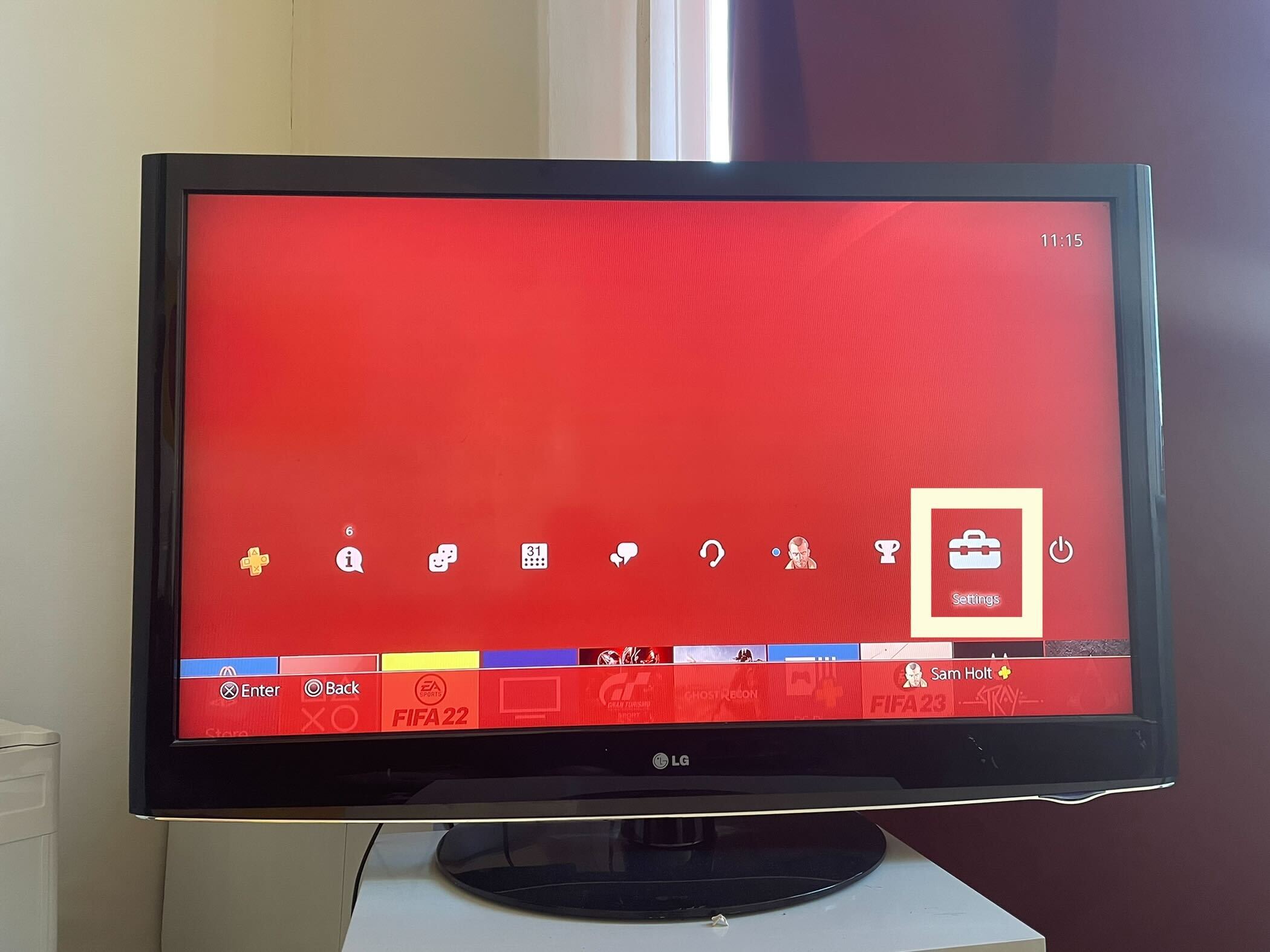
From the menu, click on the Settings button.
-
Step
3Click on Account Management
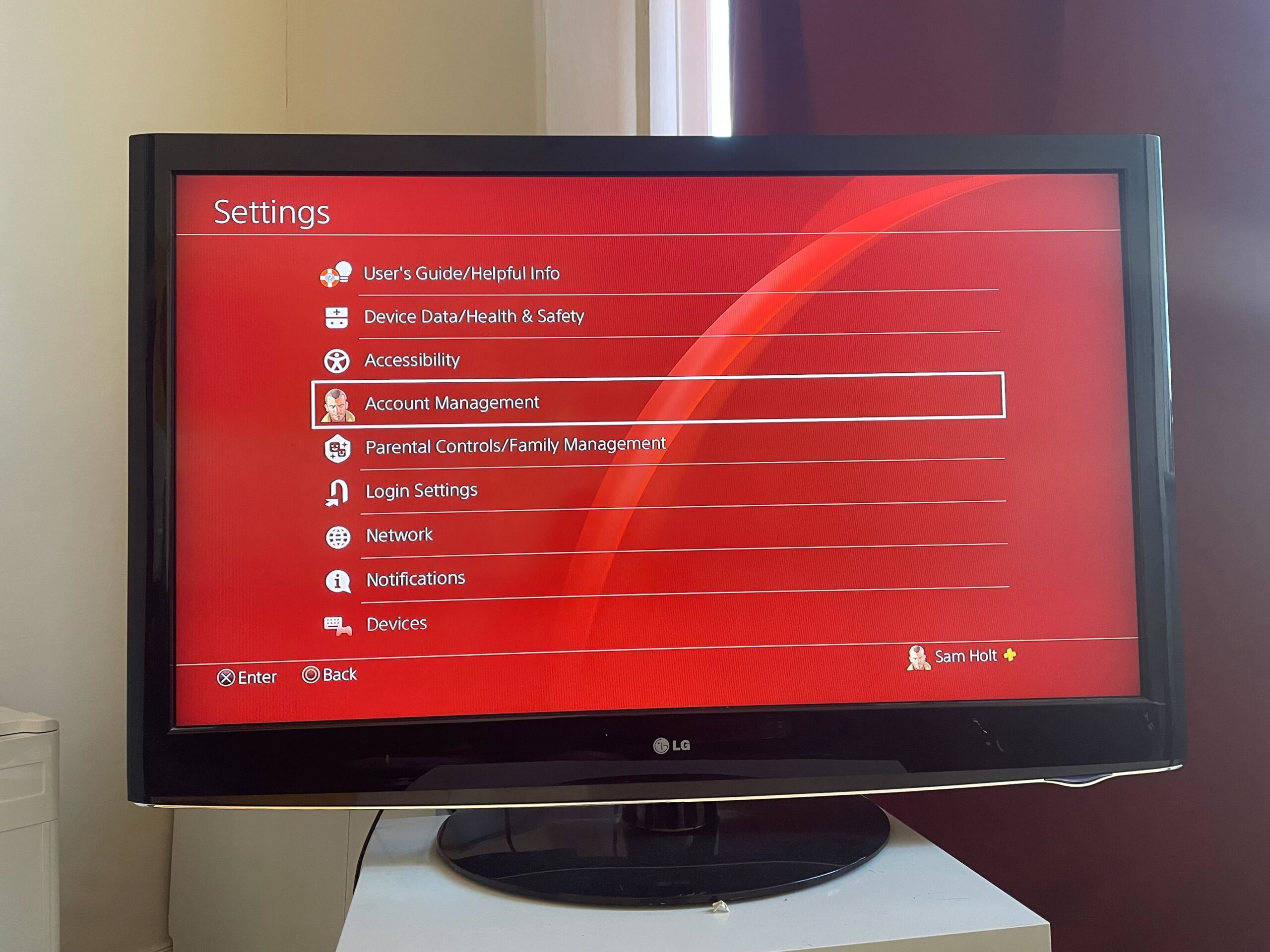
Click on the button called Account Management.
-
Step
4Click on Account Information
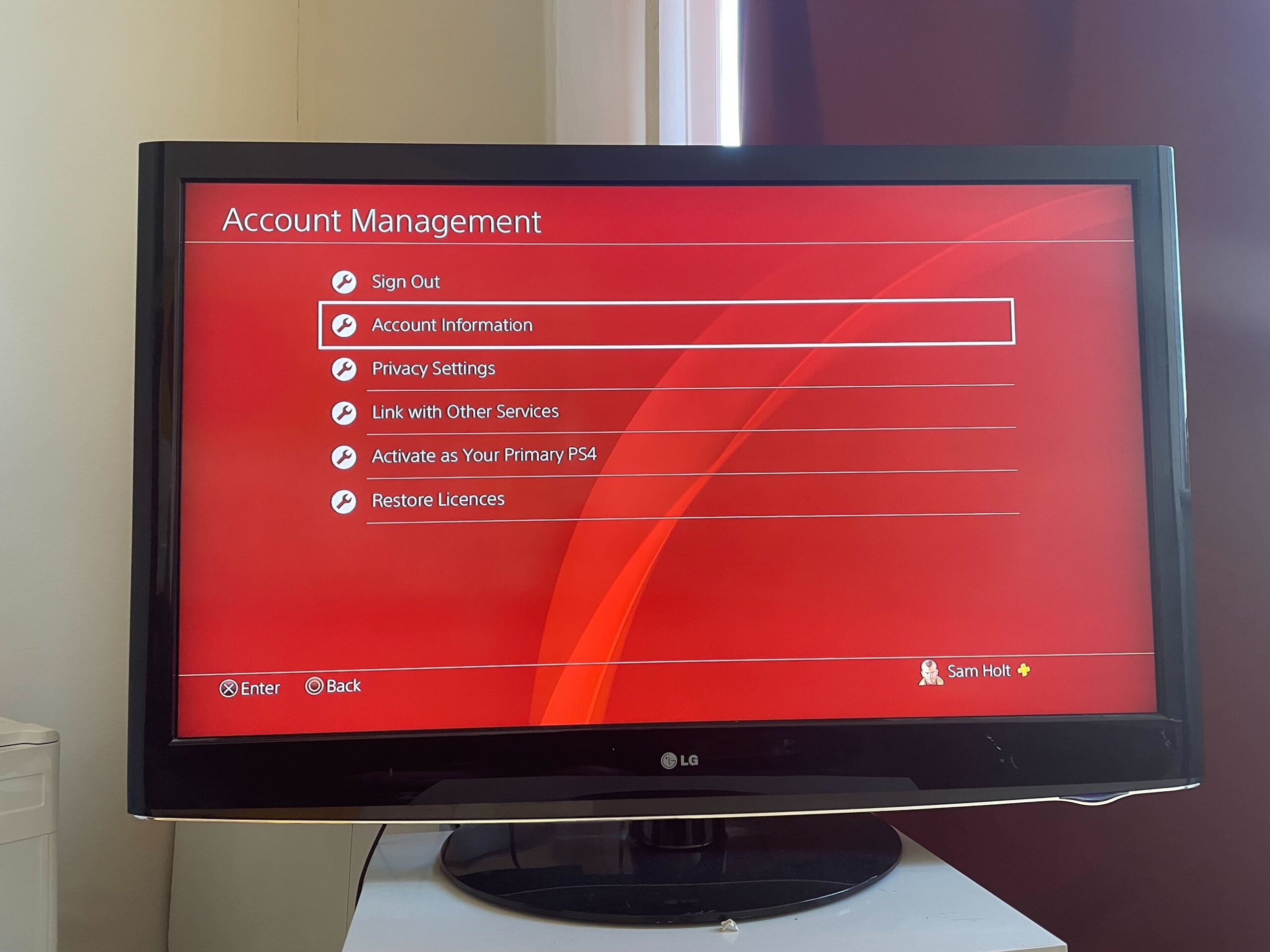
Press the button called Account Information.
-
Step
5Press Profile
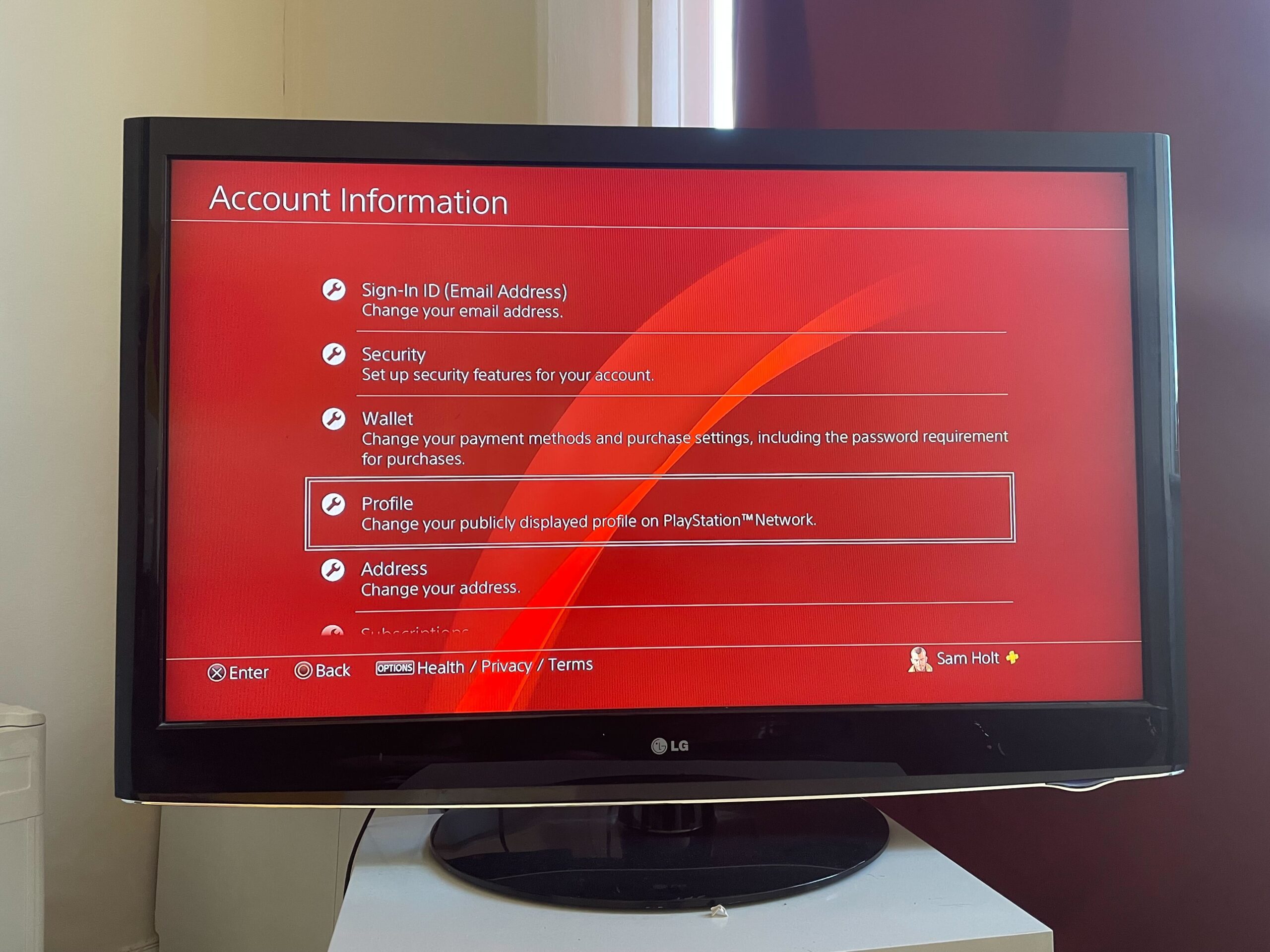
Choose the Profile button.
-
Step
6Click on Online ID
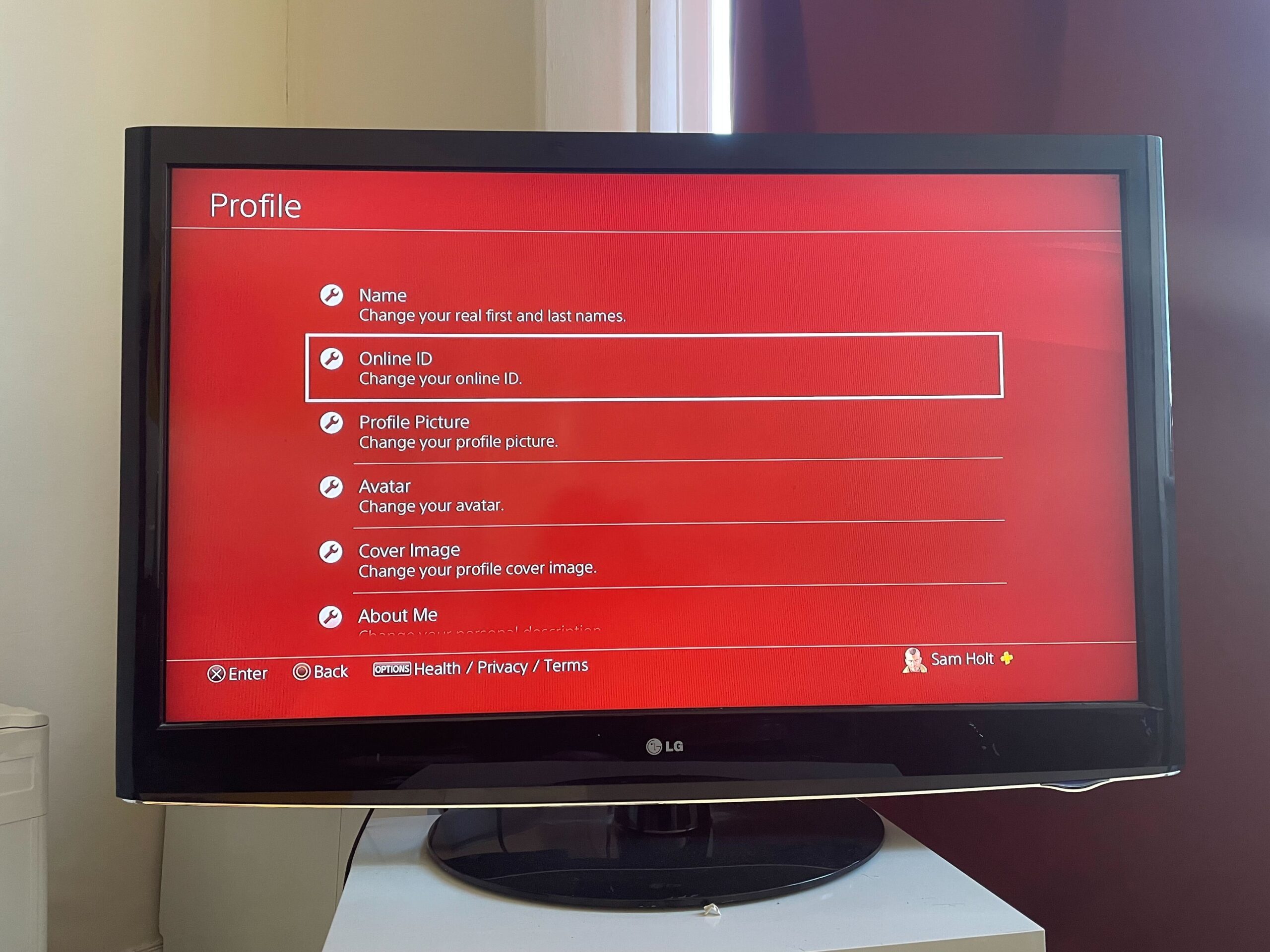
Click on the button called Online ID to change your name.
-
Step
7Press I Accept
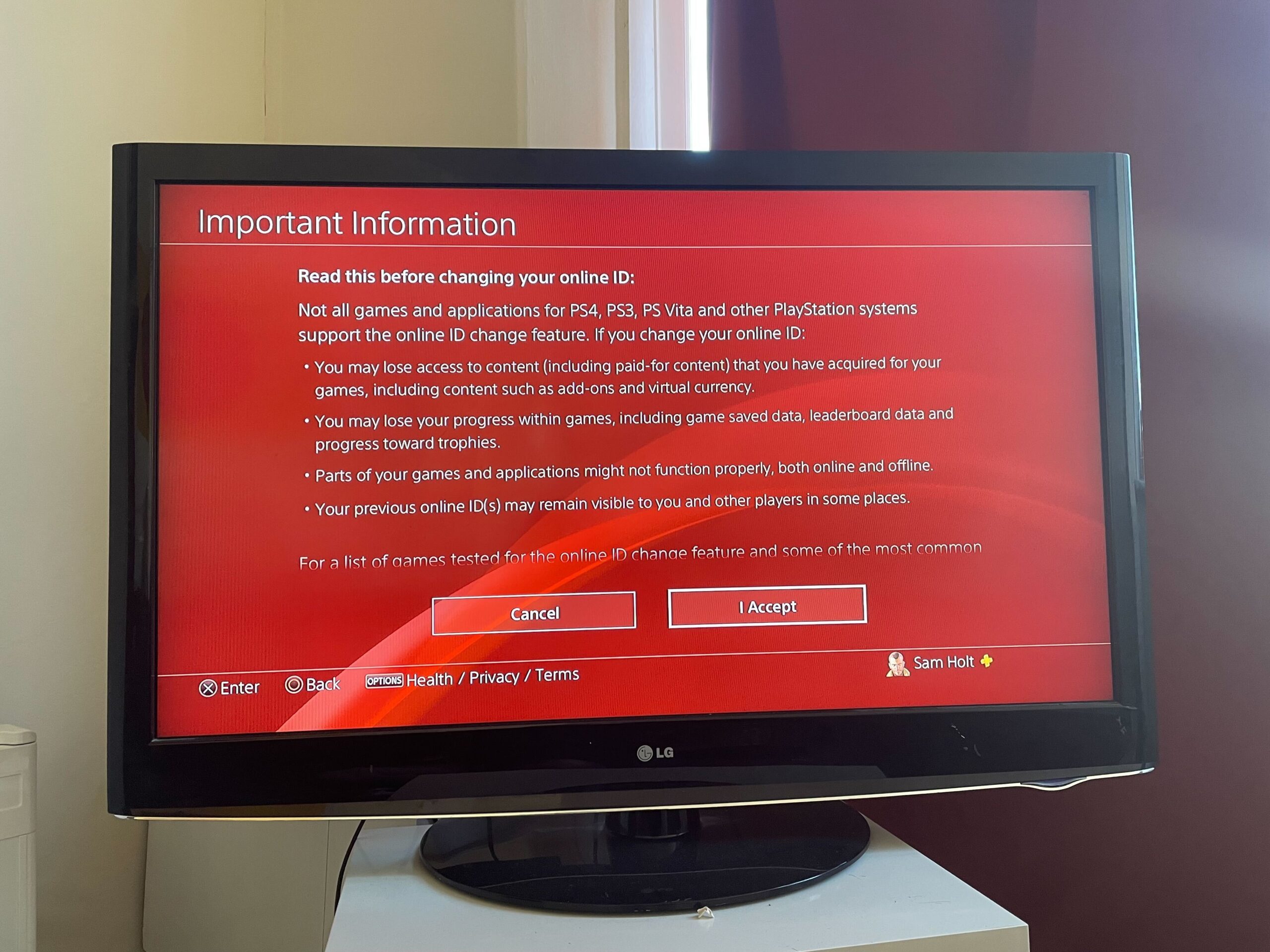
Press I Accept. We recommend you look through the terms and conditions before continuing so you understand what may happen when changing your Online ID, such as having some issues with games that only recognise your old Online ID.
-
Step
8Press Continue
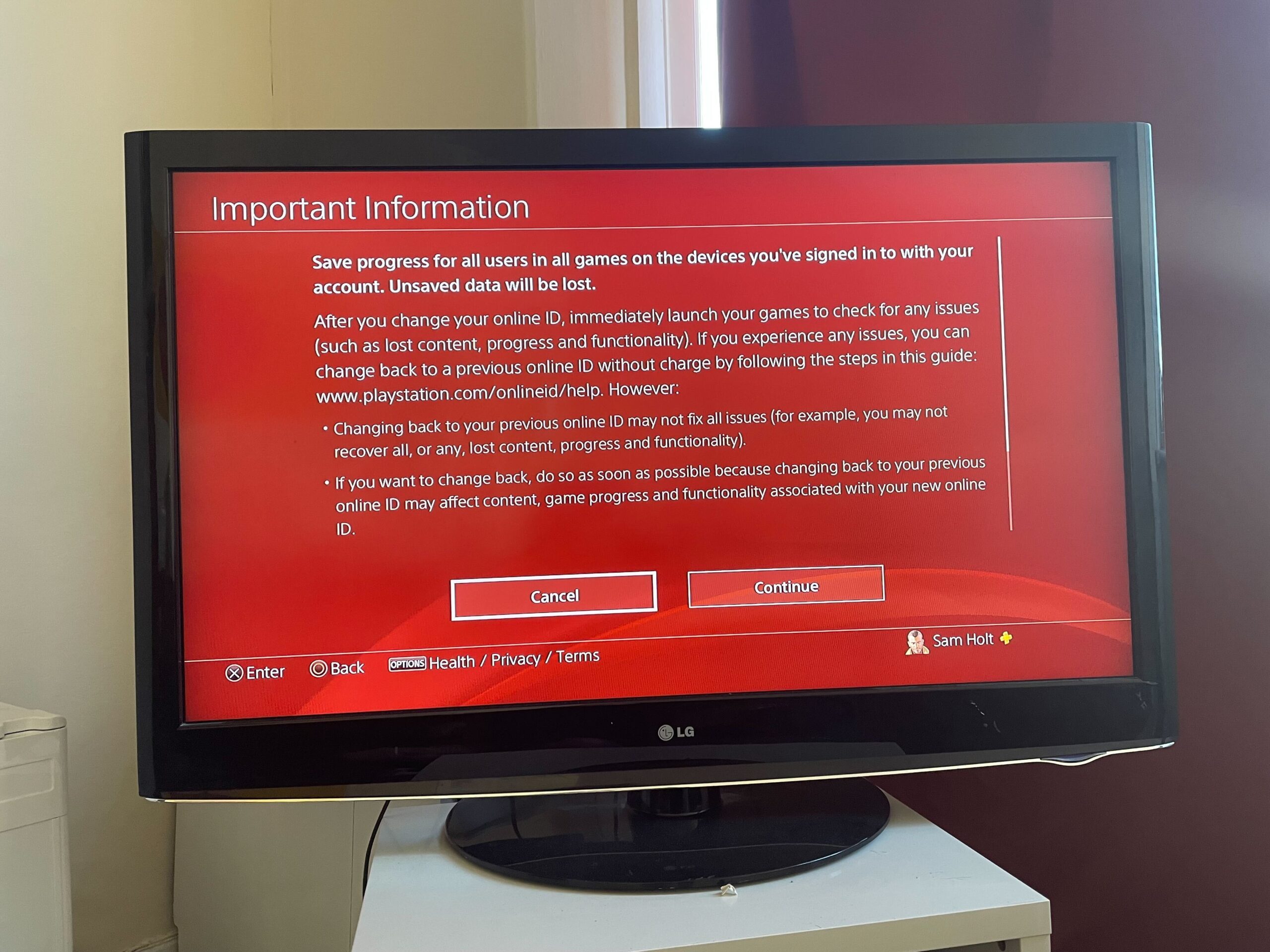
Once you have read through the terms, click Continue.
-
Step
9Enter your email and password
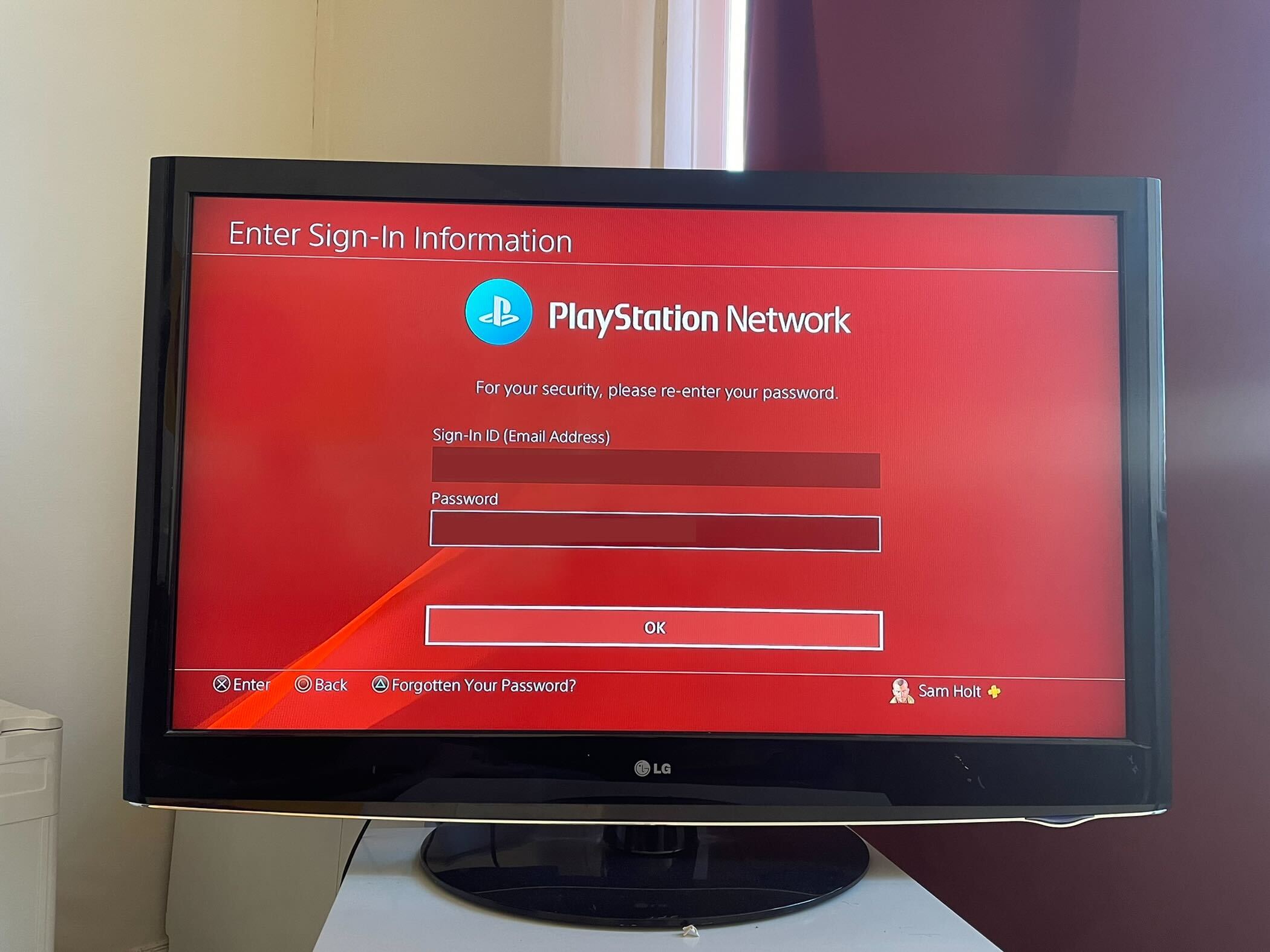
You may be prompted to enter the email and password associated with your account so Sony can check that it’s really you who owns the account. Enter your information and press continue.
-
Step
10Choose your new name and press confirm
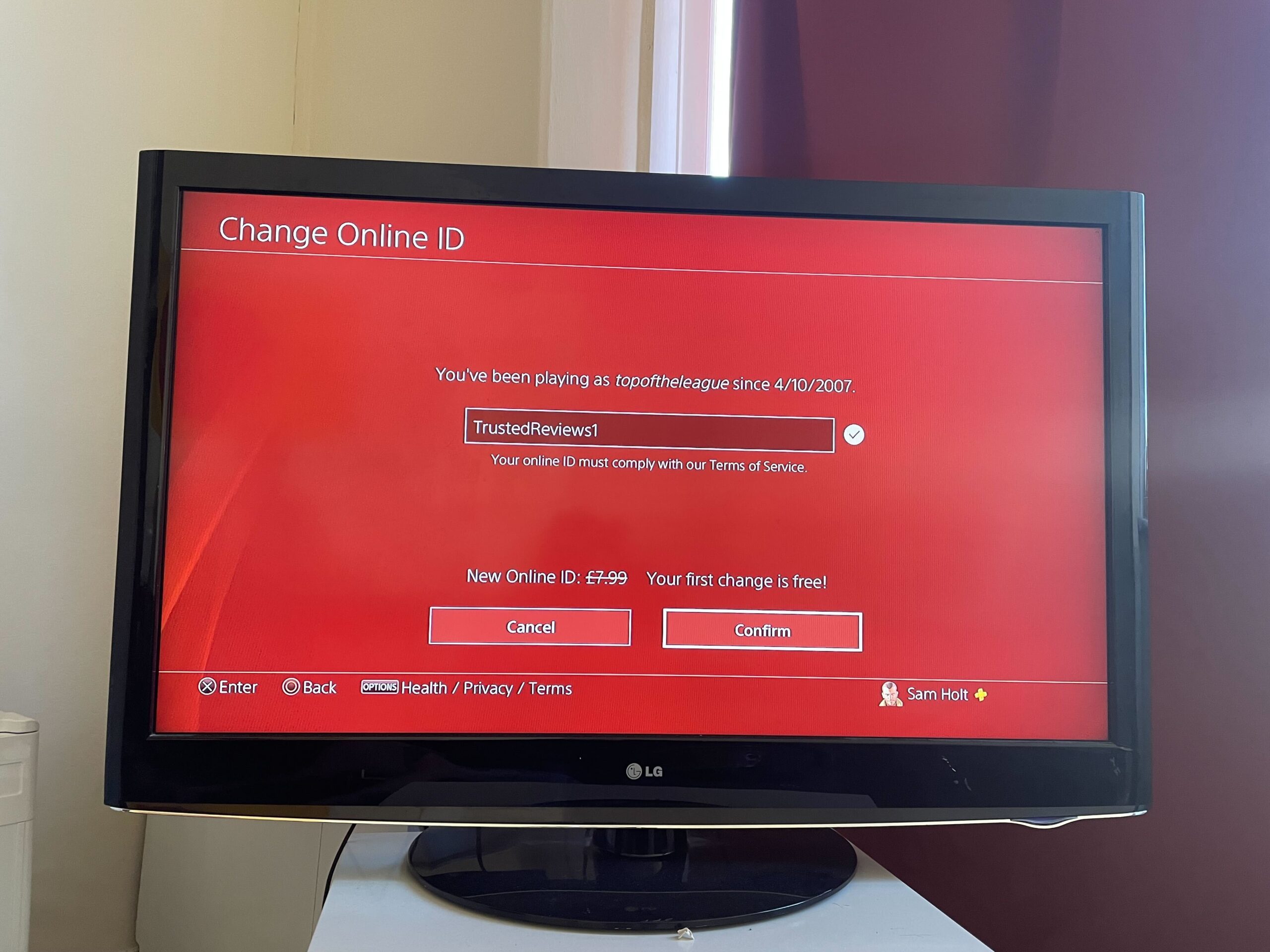
Pick a new name for your Online ID and when you’re happy, press confirm. There will be a small check next to your name if it available, if not, you will need to think of a new name.
Troubleshooting
If you want to change your name more than once then you will need to pay a fee of £7.99.
[ad_2]
Source link





