Blogger Advance
No Result
View All Result
Sunday, April 26, 2026
  • Login
  • Home
  • Business
    • Marketing
    • Economy
    • Politics
    • Investing
    • Markets
  • How To
    • Blogger
    • WordPress
  • Tools
  • Software
    • Android OS
    • Windows
    • Mac Os
  • Indo
Blogger Advance
  • Home
  • Business
    • Marketing
    • Economy
    • Politics
    • Investing
    • Markets
  • How To
    • Blogger
    • WordPress
  • Tools
  • Software
    • Android OS
    • Windows
    • Mac Os
  • Indo
No Result
View All Result
Blogger Advance
No Result
View All Result
Home How To

How to check FPS on your PC

by Foxy
July 30, 2022
in How To
Reading Time: 3 mins read
130 10
0
ADVERTISEMENT
Share on FacebookShare on Twitter

[ad_1]

Games you’re playing looking a little choppy, or are you just curious to see how fast your new gaming laptop really is? Then you’ll likely want to check each game’s FPS (frames per second) count. Here is the simplest way to check what the FPS is on your PC.

Knowing what your FPS is on your PC can be crucial, especially if you’re looking to play triple-A titles, or other graphically intensive tasks.

FPS, or frames per second, is how quickly new images can be generated on your screen, with a higher FPS rate usually resulting in a smoother performance that is less jerky.

While you don’t necessarily need a display that can produce 120 FPS, it can be helpful to know what your screen is capable of. That’s where we come in.

So, without further ado, here is the easiest way to check the FPS on your PC or laptop in just a few simple steps.

What we used

The Short Version

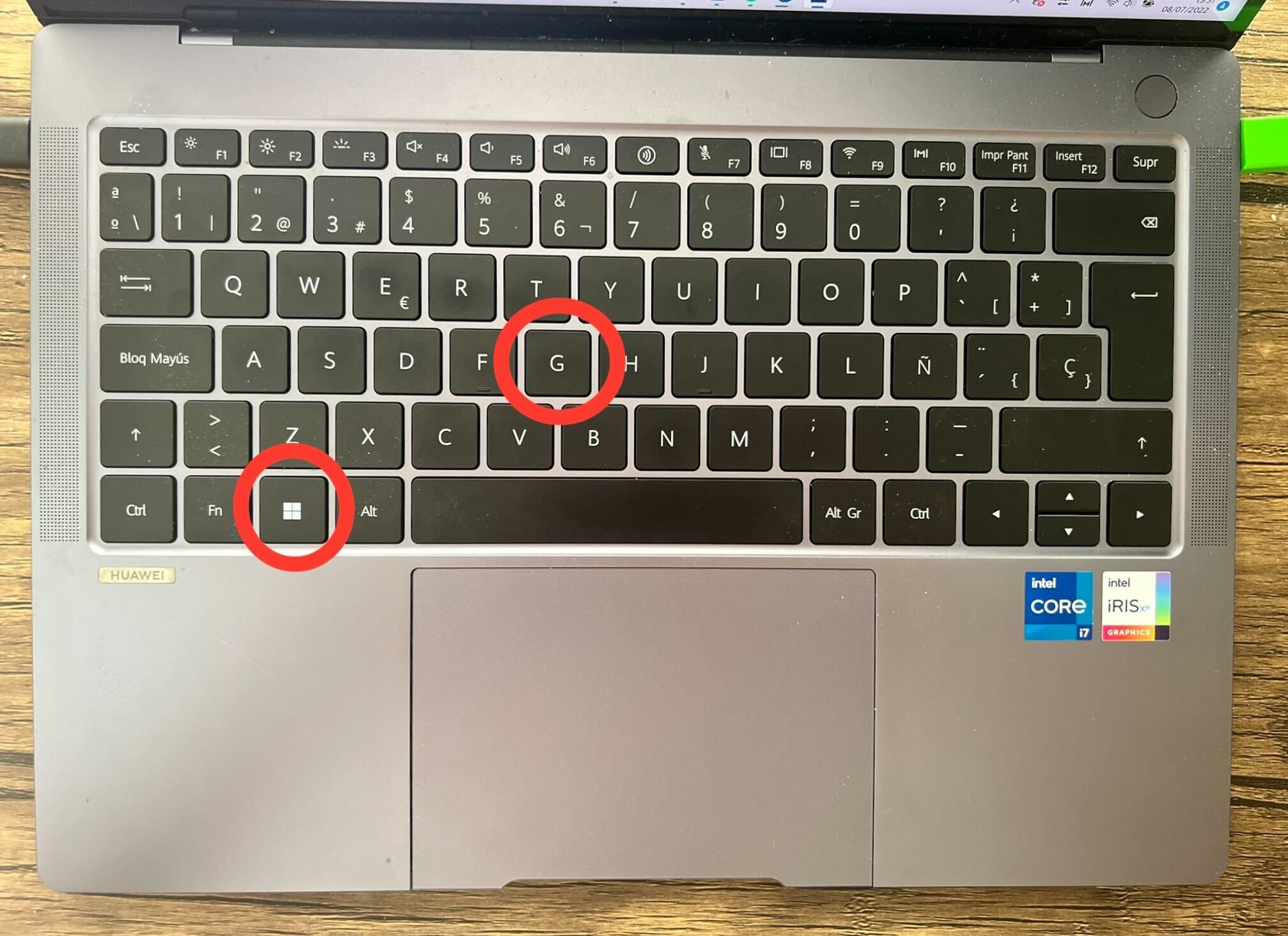
  • Press the Windows and G key at the same time
  • Click on the Perfomance button
  • Click on FPS
  1. Step
    1

    Press the Windows and G key at the same time

    At the same time, click the Windows and G key. This will bring up a new set of drop down menus or just one menu, depending on how it is formatted.

  2. Step
    2

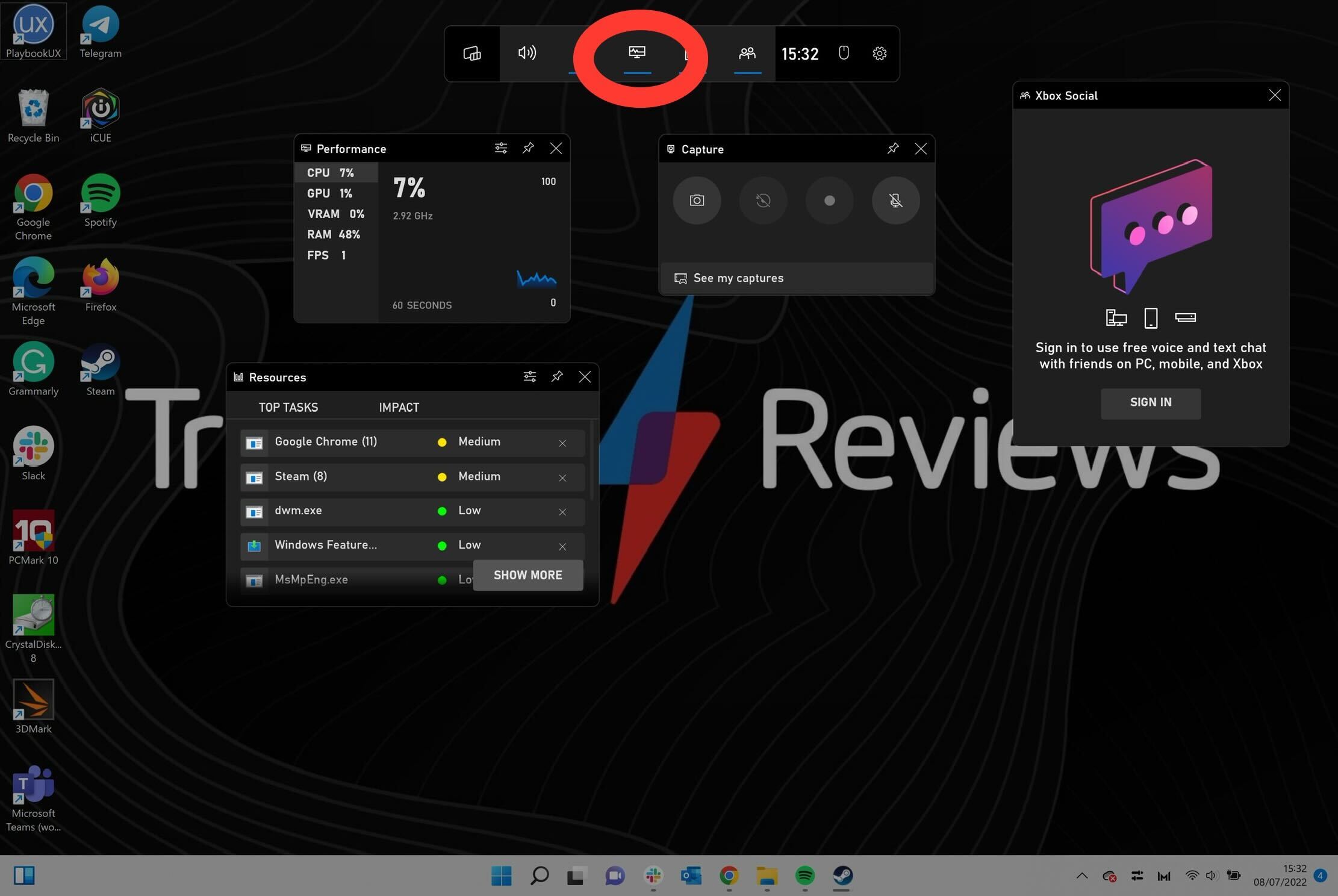
    Click on the Performance button

    You may be presented with several new drop down menus, though you only need to be looking at the Performance menu. Select the Perfomance button from the main menu located at the top of the screen. You can also deselect the other menus if you want less on your screen.

  3. Step
    3

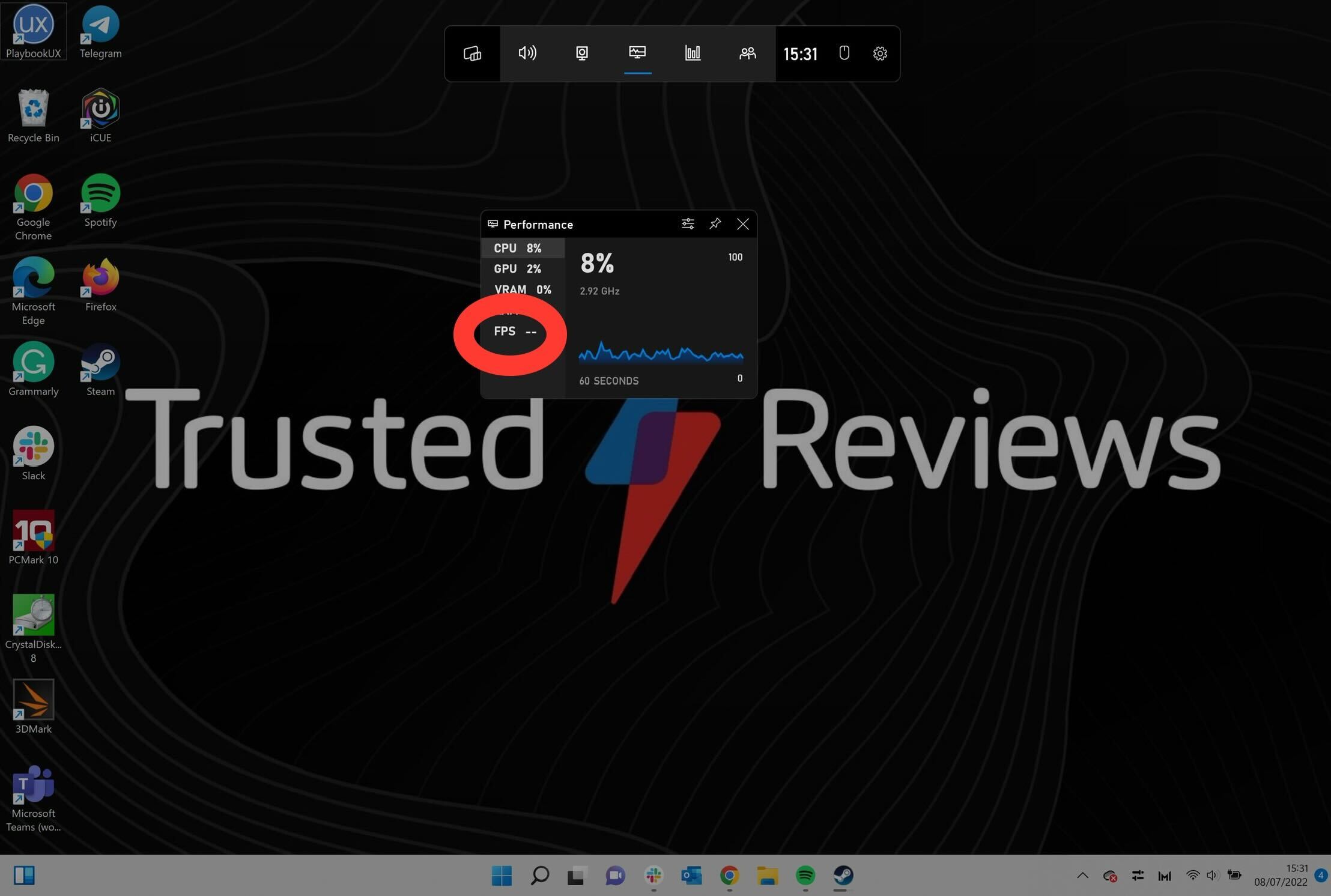
    Click on FPS

    Once in the Performance drop down menu, click on the FPS button on the left-hand side.

  4. Step
    4

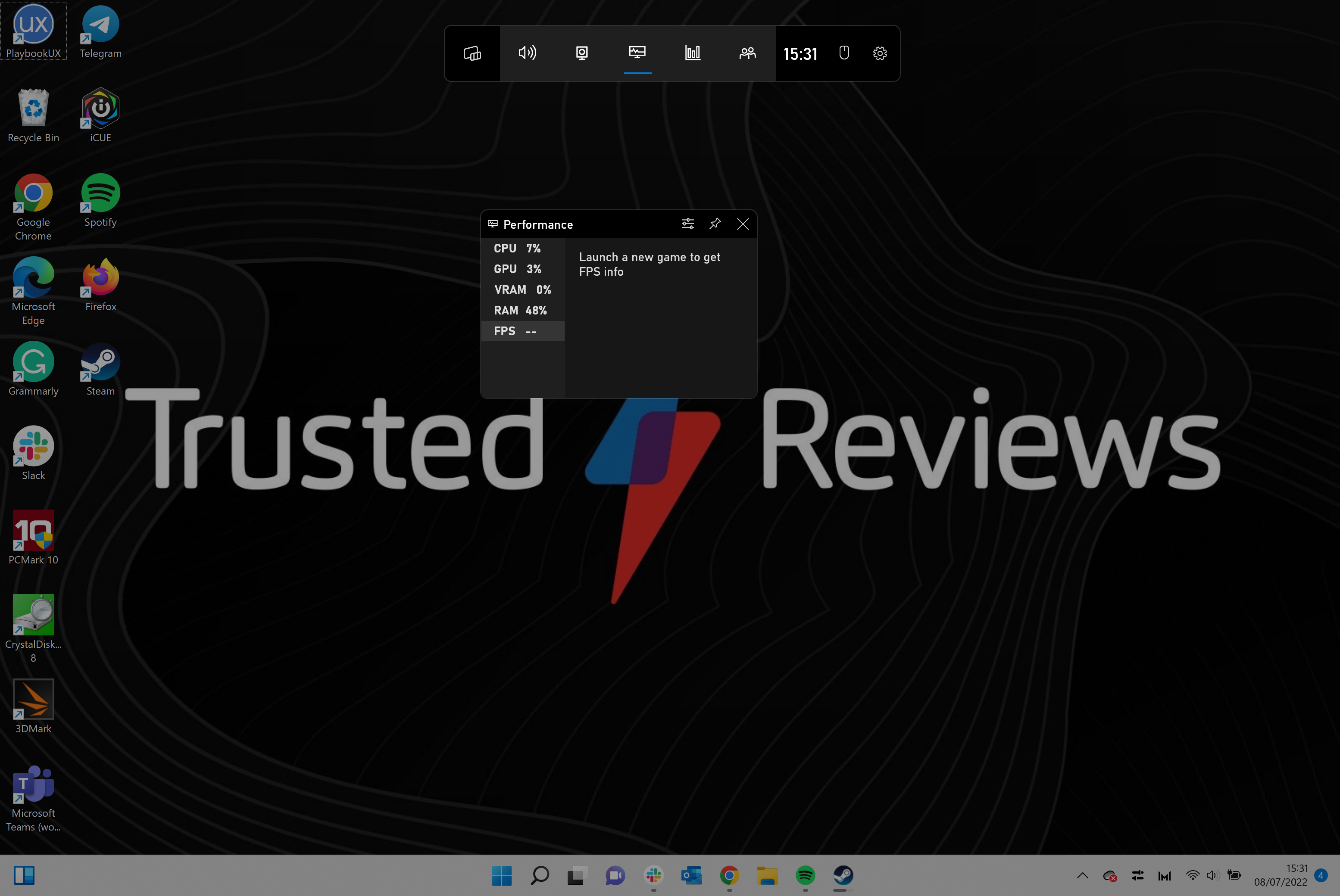
    Read the FPS number

    Read the number that is presented. If you do not have a game open while looking, the number may come up blank, as mine has. However, opening a game in an application like Steam should prompt the menu to show you the FPS on screen.

Troubleshooting

Do I need a game open to read the FPS?

No, you do not need a game open to read the FPS levels, however, if you are inactive on your device it may show a low reading. Opening a game may show a higher FPS rating.

Do I need a really high FPS to game?

Not necessarily, though it may depend on what type of game you are playing. An indie game will likley not require as much power to run smoothly as a triple-A title like Call of Duty: Vanguard. You can check out our explainer on FPS to find out more.

[ad_2]

Source link

Advertisement. Scroll to continue reading.
ADVERTISEMENT
Share64Tweet40Send
Previous Post

How to Map a Network Drive in Windows 10

Next Post

The Magic Question to Influence Others

Foxy

Discover the tactics, strategies, and tools you need to accelerate the growth of your blog. Click to visit

RelatedPosts

How To

How To Create a Group in Discord on a Computer of Mobile Device

August 29, 2022
2k
How To

How To Stream a Nintendo Switch to Twitch

August 28, 2022
2k
How To

How To Get Absolute Value in Google Sheets

August 27, 2022
2k
How To

How to censor explicit content on Spotify

August 27, 2022
2k
How To

How to Cite a Picture in PowerPoint

August 27, 2022
2k
How To

How to change your PS4 name

August 27, 2022
2k
Next Post

The Magic Question to Influence Others

Leave a Reply Cancel reply

Your email address will not be published. Required fields are marked *

  • Trending
  • Comments
  • Latest

How To Fix Sudo: apt-get: Command Not Found

August 9, 2022

Healer’s MIUI 12.5 for MI 8 Lite – PLATINA Mi 8 Lite

June 17, 2022

How to watch the Star Wars films and TV shows in the right order

August 9, 2022

Why Are Gas Prices Going Down?

August 9, 2022

5 Skills You Should Leave Leadership Training With

2

How to Change Your Username on Fortnite

2

20 Effective Ways to Automate and Grow Your Business

2

What is an SBA 7 (a) Loan?

2

Led by base effect & services pickup, Q1 GDP growth seen in double digits

November 5, 2022

Flexible workspaces, hours: PM for more women in labourforce

August 29, 2022

10 Online Business for Sale in August

August 29, 2022

How To Create a Group in Discord on a Computer of Mobile Device

August 29, 2022

Blogroll

AFC SOP JOGJA
JASA WEBSITE BALI
PELUANG BISNIS ONE MORE
PENGACARA DI BALI
AFC SOP SOLO
Lawyers In Bali
Rekomendasi Tempat Oleh - Oleh Khas Bali
ONE MORE INTERNATIONAL

– Advertisment –

ADVERTISEMENT

© 2021 RuangService.Com - Desain by Webhostbali.Com.

Navigate Site

  • Home
  • Advertisement
  • Contact Us
  • Privacy & Policy

Follow Us

No Result
View All Result
  • Home
  • Business
    • Marketing
    • Economy
    • Politics
    • Investing
    • Markets
  • How To
    • Blogger
    • WordPress
  • Tools
  • Software
    • Android OS
    • Windows
    • Mac Os
  • Indo

© 2021 RuangService.Com - Desain by Webhostbali.Com.

Welcome Back!

Login to your account below

Forgotten Password?

Retrieve your password

Please enter your username or email address to reset your password.

Log In
Exit mobile version