


[ad_1]
Putting an end to incessant leaks and rumors, Apple has taken the wraps off macOS Ventura along with iOS 16, iPadOS 16, and watchOS 9 at WWDC 2022. With several notable features, including Stage Manager, Safari Passkeys, and more, macOS Ventura seems to be a modest upgrade over Monterey. Now, whether you’re a developer or an Apple enthusiast who likes to test the latest features, you have come to the right place. In this guide, we will explain how to download and install macOS 13 Ventura developer beta on your Mac without losing data. Follow the step-by-step instructions to get started with the latest iteration of macOS!
Download and Install macOS 13 Developer Beta (2022)
Pre-Requisites for Installing macOS 13 Beta
First things first, you need to safeguard your data before you install beta software on your device. Knowing that beta software is generally buggy and could cause issues like bricking, overheating, and even unexpected data loss, you should not jump on the bandwagon without knowing the trade-offs. Hence, make sure to back up your Mac before going ahead with the process.
If something goes wrong, the latest macOS backup will allow you to restore your data and even let you downgrade to macOS 12 from macOS 13 with ease. That said, let’s look at two methods that you can use to back up data on Mac devices.
Back Up Your Mac with Time Machine
With Time Machine, the built-in backup feature in macOS, you can automatically back up your apps, photos, music, documents, and other personal data.
1. To begin, connect an external storage device like a USB or Thunderbolt device to your Mac.
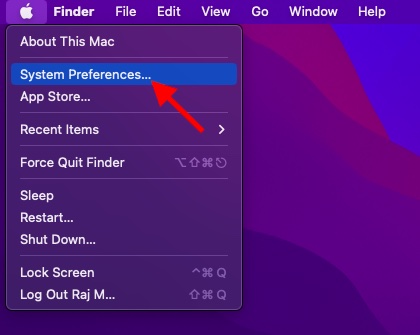
2. Now, launch Time Machine from System Preferences. You need to click the “Apple menu“ at the upper-left corner of the screen -> System Preferences -> Time Machine.

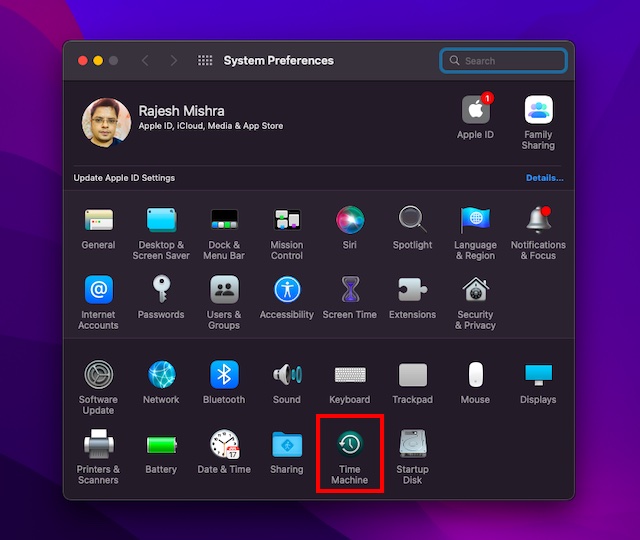
3. Next, click Select Backup Disk.

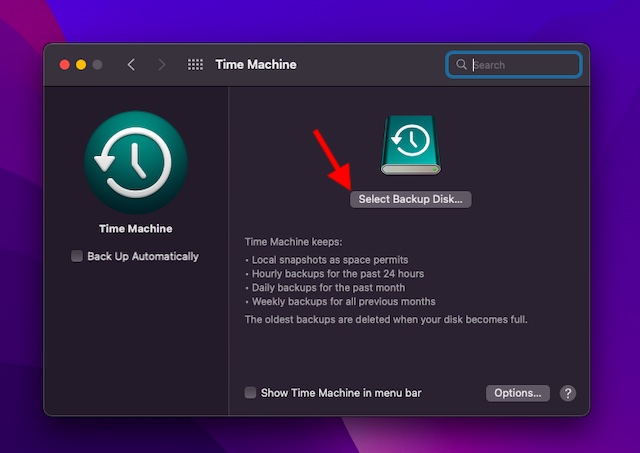
4. Then, select the name of your disk and click the “Use Disk” button. That’s it! Time Machine will now start making a backup of your device.
Back Up Your Files with iCloud Drive
If you have enough iCloud storage, you can store all your desktop and document files in iCloud Drive. It will not only add an extra layer of safeguard against data loss but also allow you to access your files across devices.
1. On your Mac, click the Apple menu at the top-left corner of the screen and choose System Preferences.

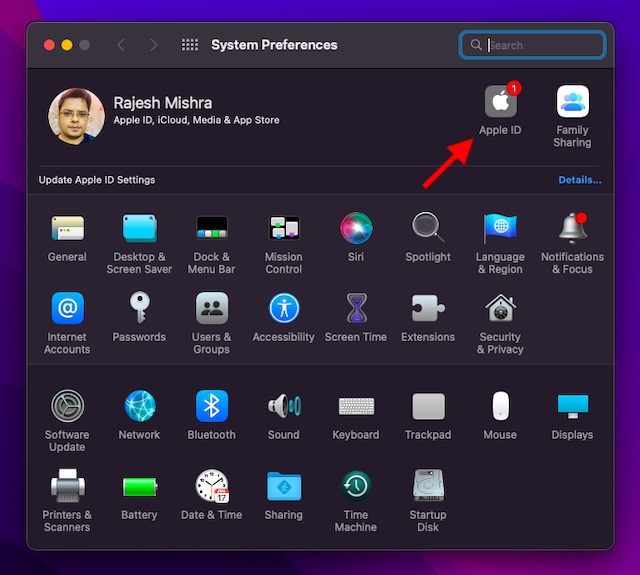
2. Now, click on Apple ID.

3. Next, click on iCloud in the left sidebar.
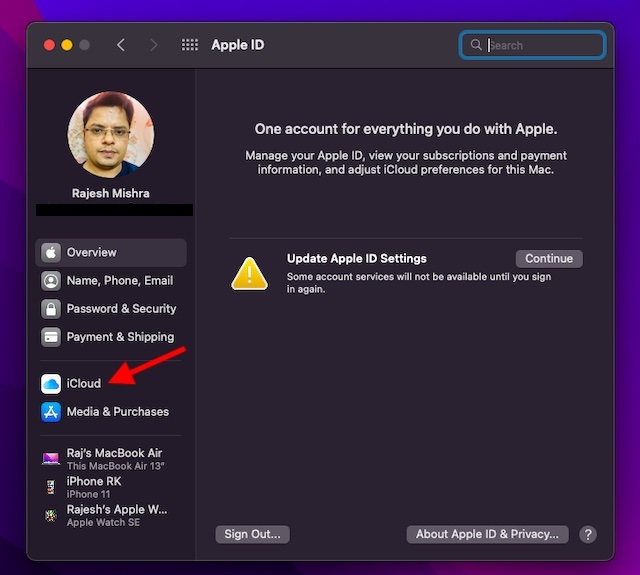
4. Ensure that iCloud Drive is turned on. After that, click the “Options” button next to iCloud Drive.
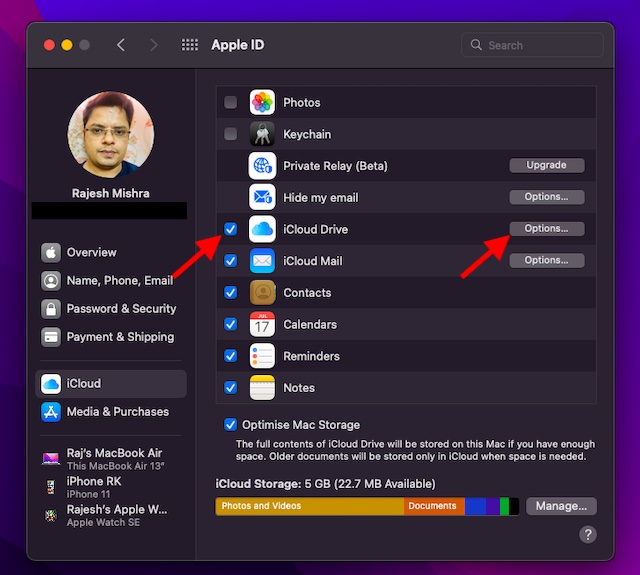
5. Now, check the box for Desktop & Documents Folders and hit “Done” to finish.
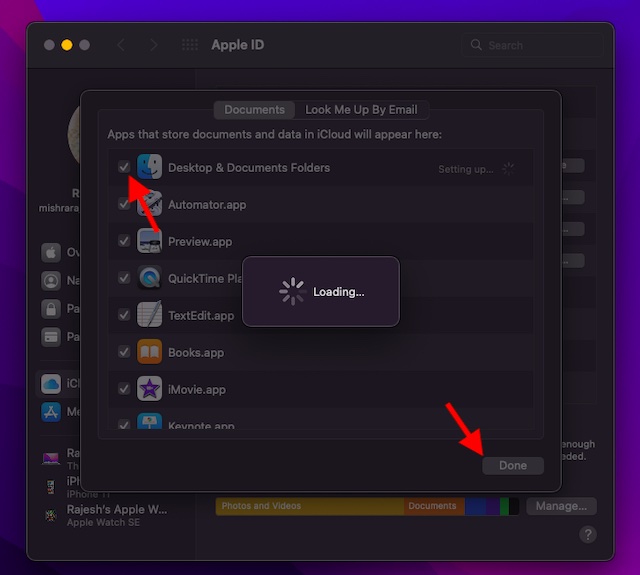
Note: Keep in mind that if you use another cloud service provider such as Dropbox to sync and manage your Desktop and Documents folders, you will first need to turn it off before being allowed to use Desktop and Documents.
Ensure Your Device is Compatible with macOS 13 Ventura
Since macOS Ventura does not support many older Mac models, including the 2017 MacBook Air and 2016 MacBook Pro, make sure to check if your device is compatible with macOS 13 before moving ahead.
Download macOS 13 Ventura Developer Beta Profile on Mac
1. To get started, open a browser on your Mac and head to developer.apple.com.
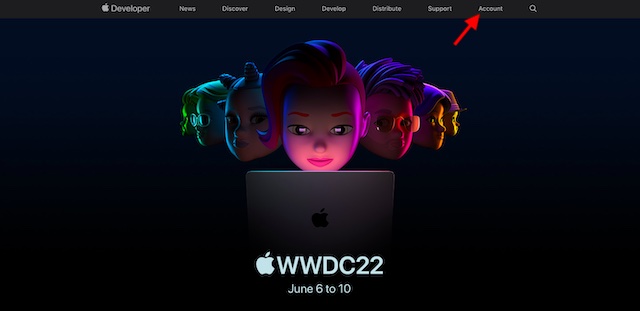
2. Now, click on the “Account” tab and sign in to your developer account.

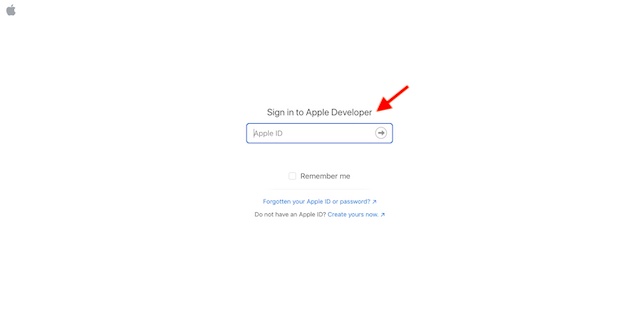
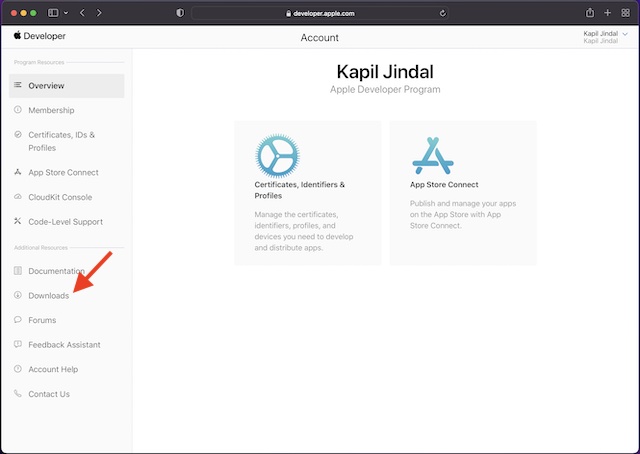
3. Next, click on “Downloads” in the left sidebar.

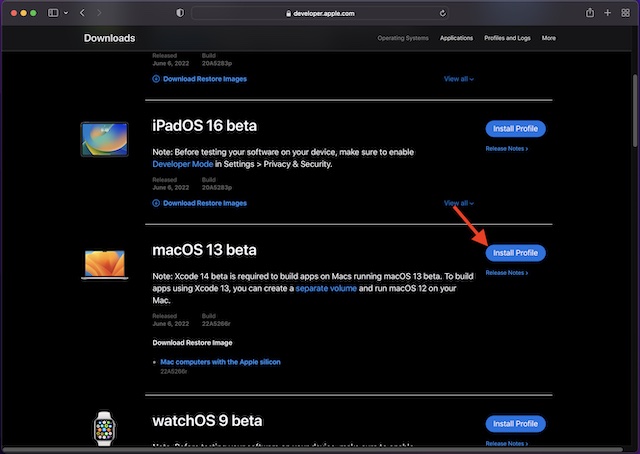
4. Scroll down to find the “macOS 13 beta” section and click on “Install Profile” right next to it.
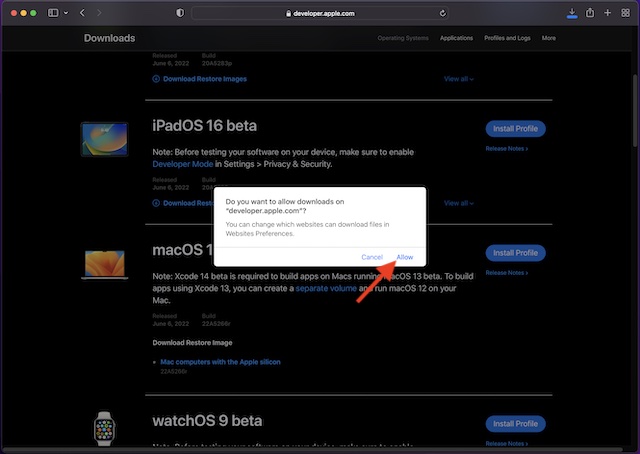
5. A pop-up will then appear on the screen saying, “Do you want to allow downloads on ‘developer.apple.com’?” Here, click on Allow to proceed.
6. Next, open the “Downloads” folder in Finder and choose macOS 13DeveloperBetaAccessUtility.

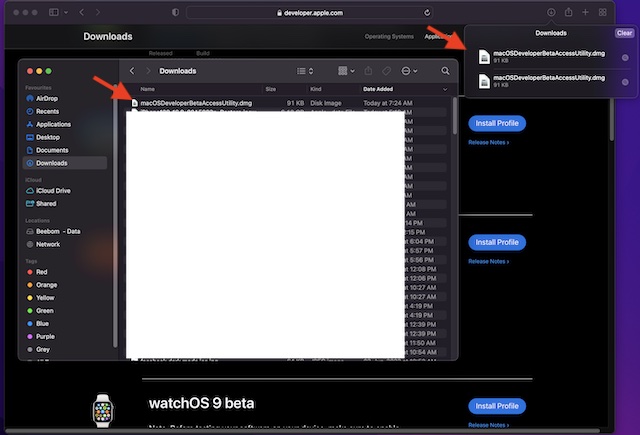
7. Double-click the macOSDeveloperBetaAccessUtility.pkg to run the macOS Ventura developer beta installer.
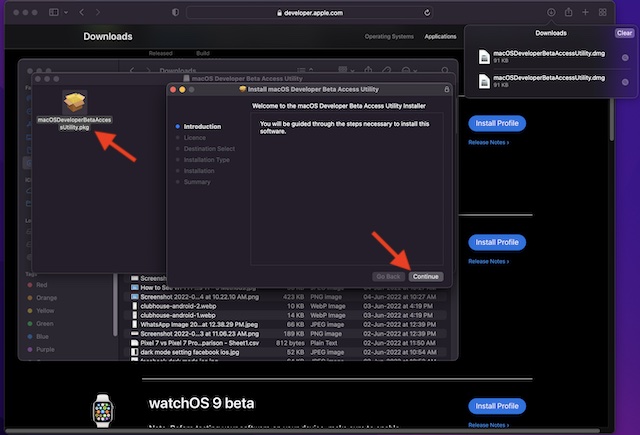
8. Make sure to agree to Apple’s terms and conditions.
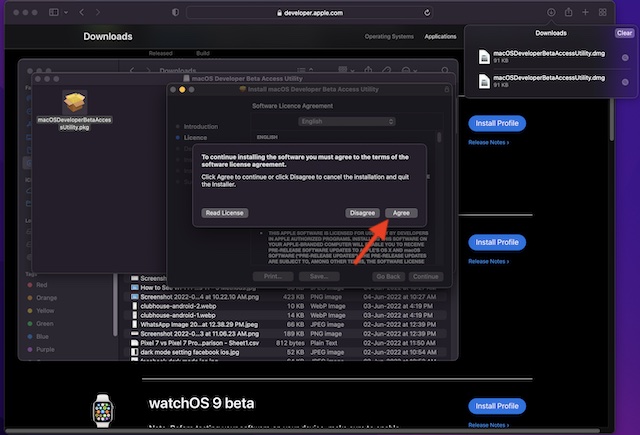
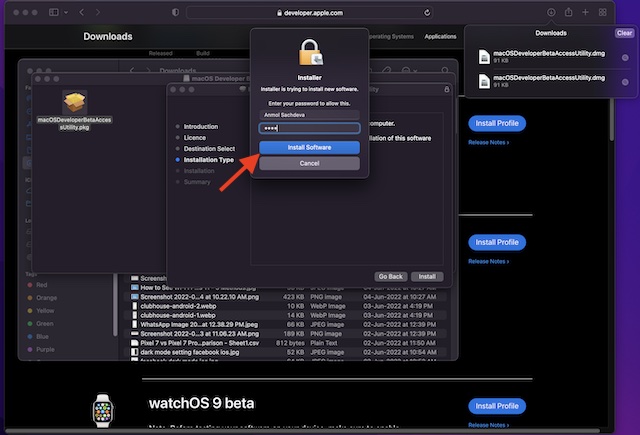
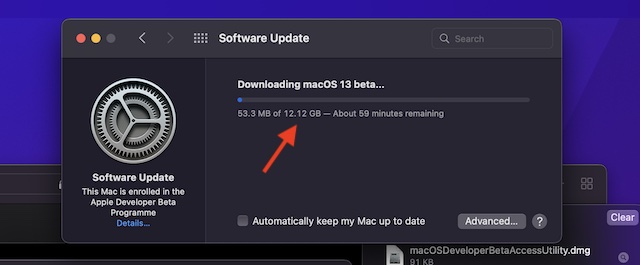
9. Then, follow the usual prompts to finish the installation. In the end, you will need to enter your administrator password and hit “Install Software” to start downloading macOS 13 beta.

Note:
- Once the installer has been successfully downloaded on your Mac, System Preferences will check for an update to macOS 13. Then, you can click on Update to download and install the macOS 13 developer beta software.
- If the macOS 13 developer beta software doesn’t show up in the Updates section, restart your Mac (Apple menu at the upper-right corner -> Restart). After that, launch the Mac App Store and open the Updates tab.
- Keep in mind that the total time that the macOS developer beta update may take to finish downloading entirely depends on the file size and your Wi-Fi connection.
Install macOS 13 Ventura Developer Beta on Mac
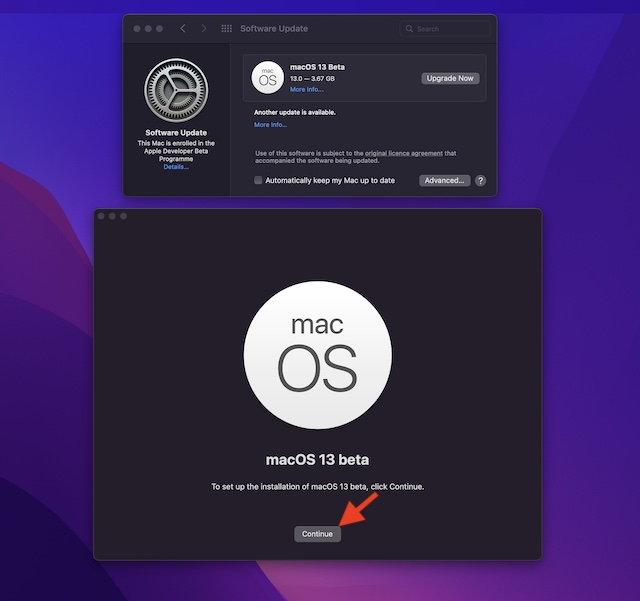
When macOS 13 developer beta software has been downloaded, you will see a prompt to install the software automatically. Here’s how to go about it:
1. In the macOS 13 beta installer, click “Continue” to proceed.

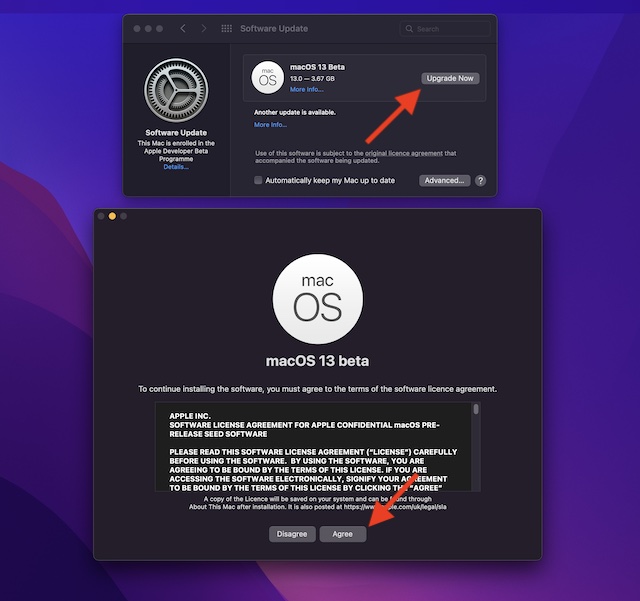
2. Now, agree to Apple’s Terms and Conditions.
3. Finally, click “Install” and follow the instructions to start installing macOS 13 beta on your Mac.
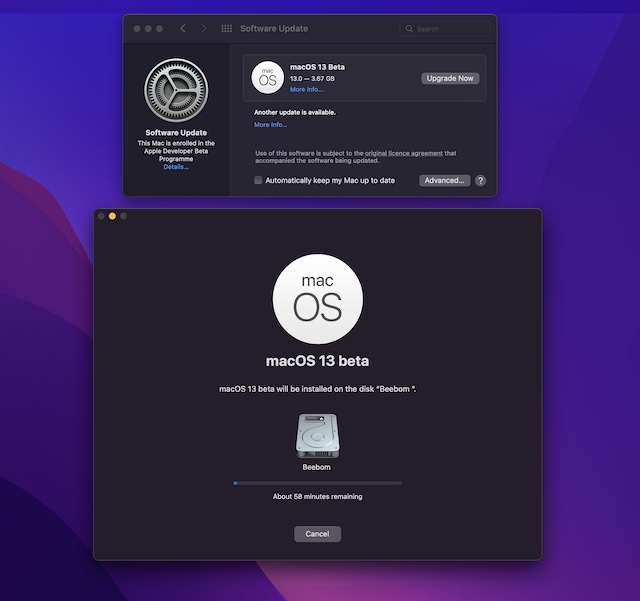
4. When the installation is done, you will get a prompt to restart your Mac. Click Restart.

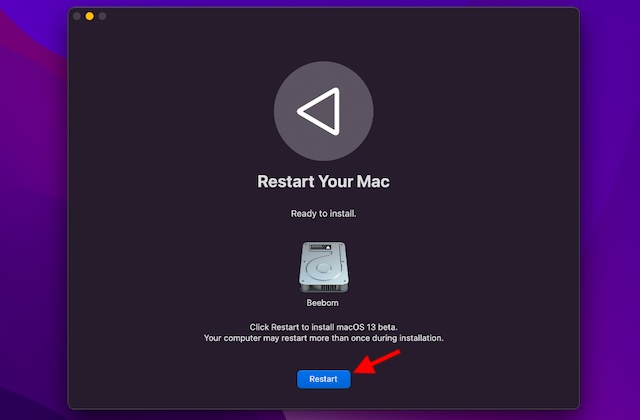
Your Mac will now reboot, and a black screen with the Apple logo and a progress bar will appear on the screen to let you know about the installation progress. As the installation will take some time, sit tight and check out how to install the iOS 16 beta in the meantime.
How to Get Started with macOS 13 Developer Beta
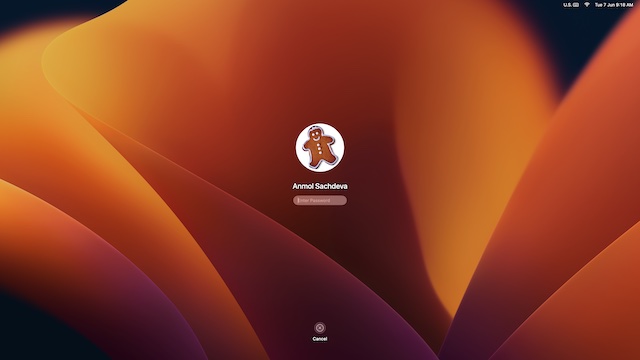
When your Mac reboots, the brand new macOS 13 wallpaper and lock screen will greet you. Now, it’s time to set up your Mac and customize the new features to your liking.

Explore New Features in macOS 13 Ventura Beta
Now that you have got your hands-on macOS 13 beta, go ahead and explore all the cool features and hidden tricks in Apple’s latest desktop OS update. Since macOS Ventura has some notable new add-ons, I’m sure you would have a pleasant experience. We have started testing the latest iteration of macOS, especially the Stage Manager feature, so stay tuned for further updates. And yes, if you come across any new exciting features, be sure to share them with us and our readers in the comments below.
[ad_2]
Source link





