


[ad_1]
Philips Hue lights are incredibly reliable in our experience. Unlike other Wi-Fi-based lights, you can definitely replace your ordinary dumb bulbs with Philips ones, using the wireless switch, app, or voice control to turn them on and off.
However, as Philips Hue bulbs use the Zigbee wireless protocol, you can get some issues with it, including the Hue lights unreachable error, with the bulbs not displaying properly in the app. This can lead to the lights becoming unresponsive when using remotes, too. There are a few things to check to get them working again.
What we used
These steps will work with any Philips Hue bulbs or lights, and with the Bridge.
The short version
Check the light switch
Check that the Bridge is online
Check network size
-
Step
1Check the light switch
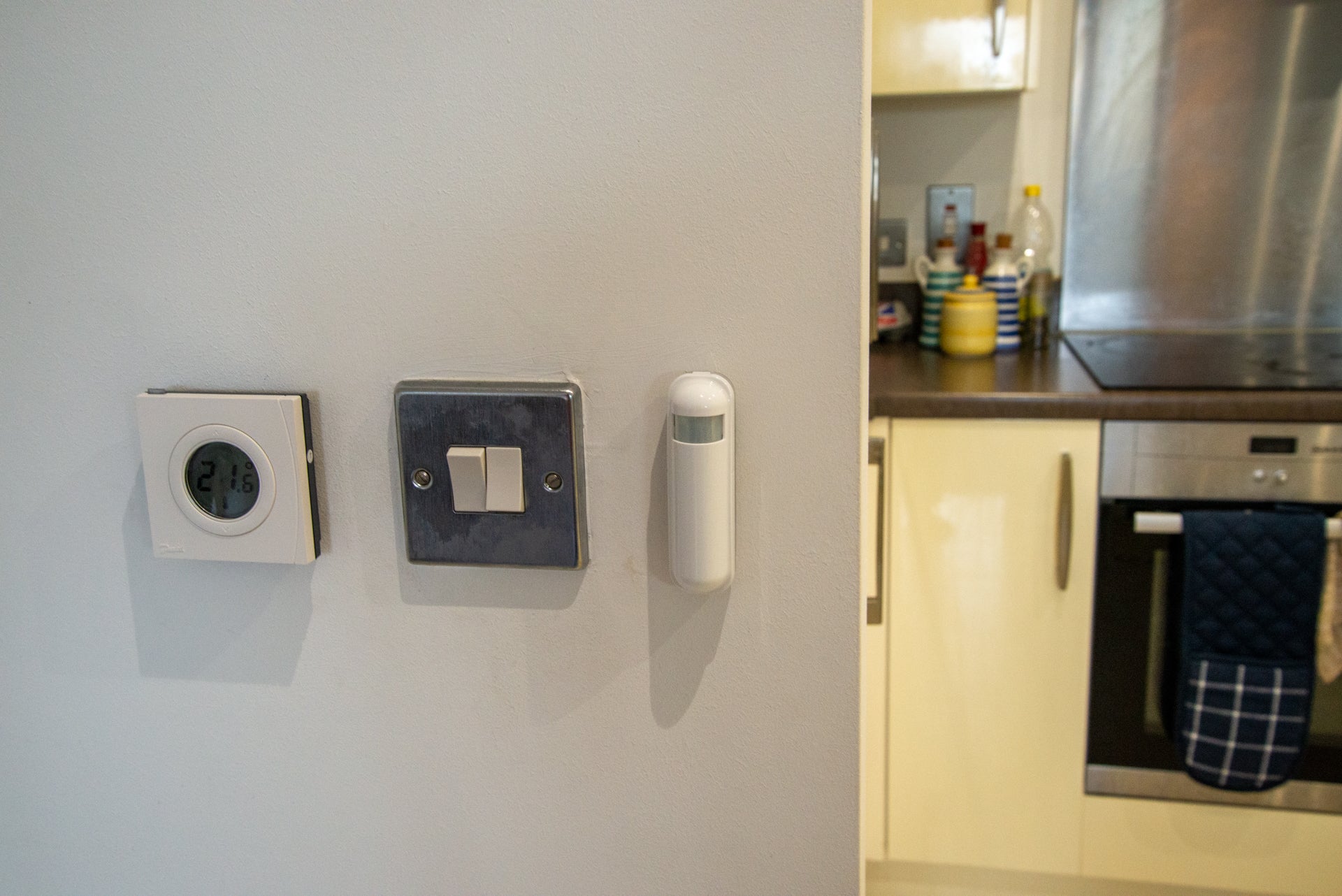
For Hue bulbs to operate they have to be turned on at the main light switch permanently. The intelligence to dim the bulb, change colour and the like is built into the bulbs, which respond to wireless commands.
If someone has turned off the main light switch, the bulb will be physically turned off and won’t get power any more. It can take a while for this to show in the app, but the bulb will eventually show as unreachable. To fix this problem, just flick the light switch back on: the bulb will come on at max brightness in warm white mode. This is so that the Hue bulbs can be used like normal light bulbs should anything go seriously wrong and you can’t get app or remote control.
For the LED light strip and the outdoor lights, you need to turn them on at the plug and make sure that the power box is connected to the light strip. If the switches are turned on, try turning them off, waiting for 10 seconds and then turning power back on. This can kick a bulb back into life.
-
Step
2Check that the Bridge is online
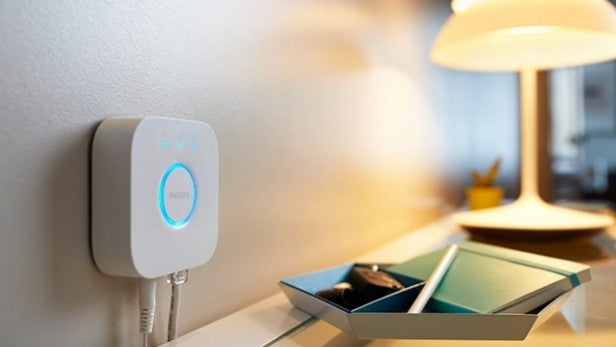
If you’ve got a Philips Hue Bridge, it needs to be online for your lights to work. The Bridge is connected via Ethernet, so check that the network cable and power cables are firmly attached and that you have all three lights lit up on the Bridge.
If you don’t have all three lights, try rebooting the Bridge by taking the power out and back in, and check that the Ethernet cable is securely plugged in to your router.
-
Step
3Check network size
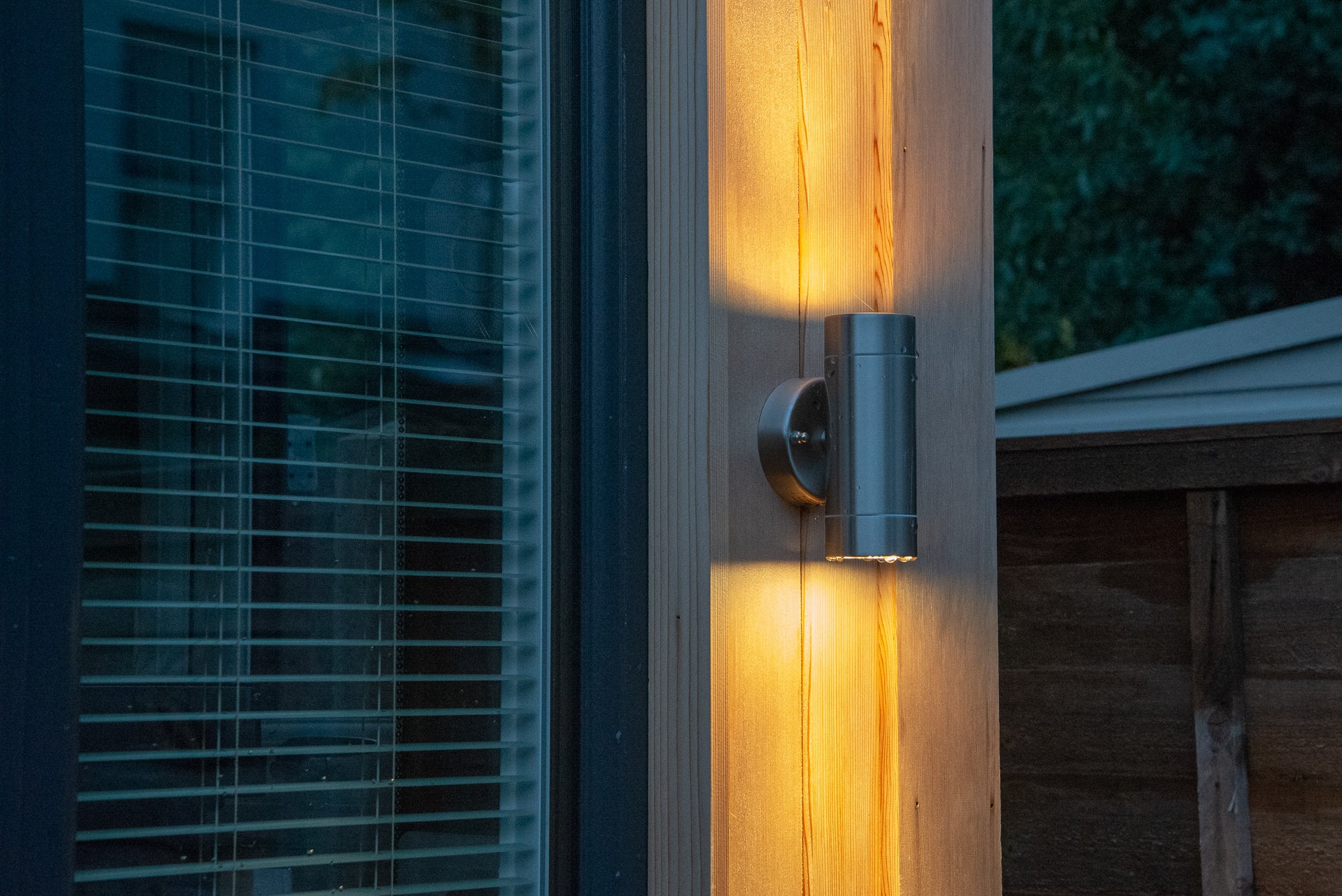
Zigbee devices that are permanently connected to the mains act as repeaters, expanding the mesh network. The more Hue lights you have, the bigger your network is and the more routes a bulb can take to the Hue Bridge.
If you find that bulbs furthest from the Hue Bridge aren’t working, network range could be an issue. There are several options to help you. First, you can try moving the Hue Bridge. Placing it centrally in your home will give you the best coverage.
Next, you can install additional Hue bulbs. To operate a house, and garden office from a single Hue Bridge, we have bulbs installed in light fittings outside the house and externally on the office wall: this gives us enough network to cover everything. Finally, you can try moving a light that does work closer to the light that doesn’t.
-
Step
4Deal with interference
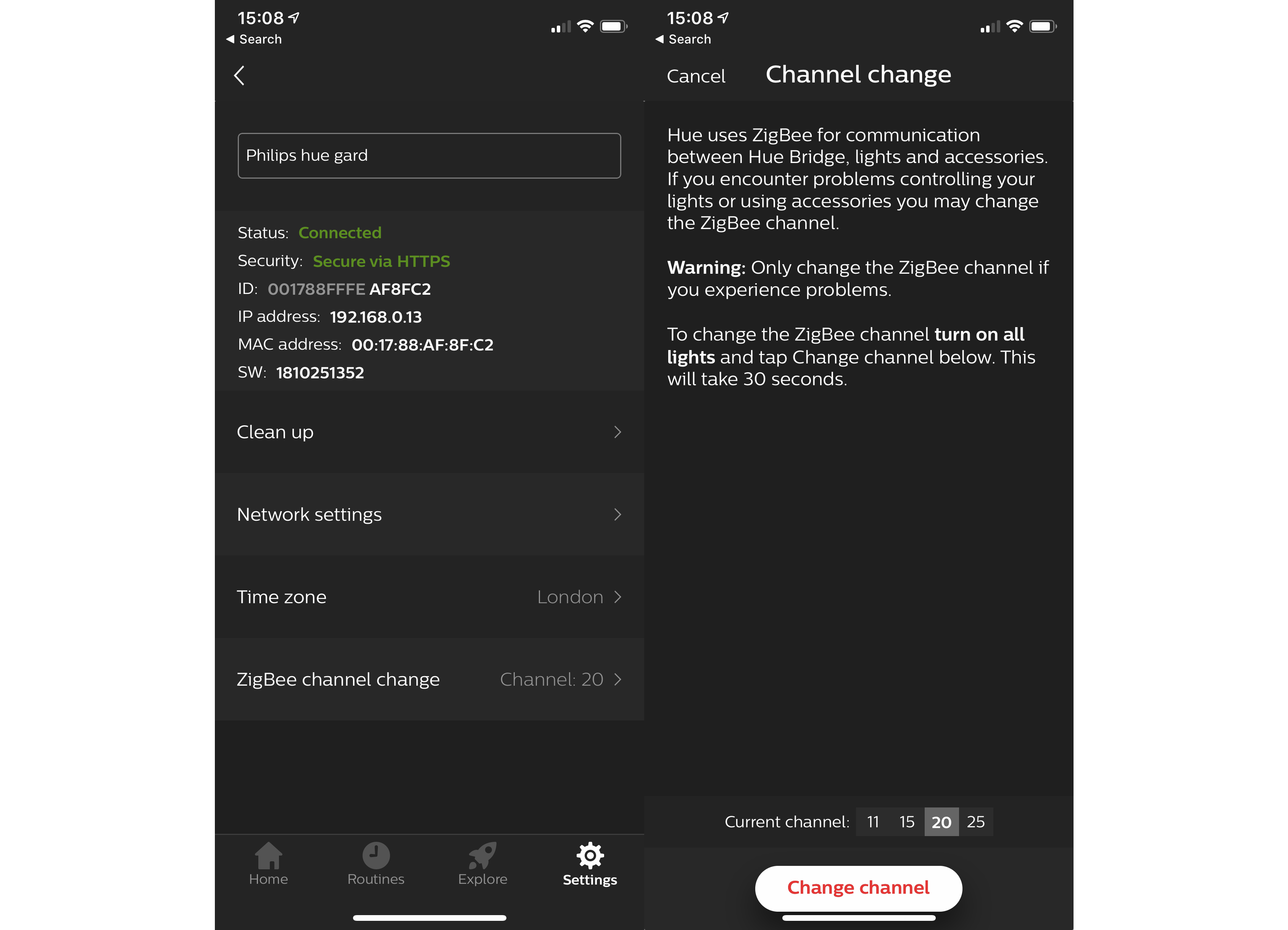
Zigbee operates on the 2.4GHz band alongside Wi-Fi. Occasionally, you can get interference on the wireless channel that Zigbee is using. Moving the Bridge further from the router can fix the issue, but this doesn’t always work.
To fix this this problem, you usually need to change the channel used. Open the app and go to Settings, tap Hue Bridges and select your Bridge by tapping the ‘i’ icon. Tap Zigbee channel change. Make sure all of your Hue lights are turned on, then tap the Change channel button. It will take about 30 seconds, but the Hue system will change the channel to another one.
Note down the instructions for dealing with Friends of Hue Switches, if you have any – if you change Zigbee channels, you need to press buttons in a certain order to reconnect the switch.
Official Hue lights and switches should all come back online automatically. If they don’t you can force the issue by turning lights on and off again at the main light switch/plug socket, and tapping buttons on a switch.
-
Step
5Reset and re-add
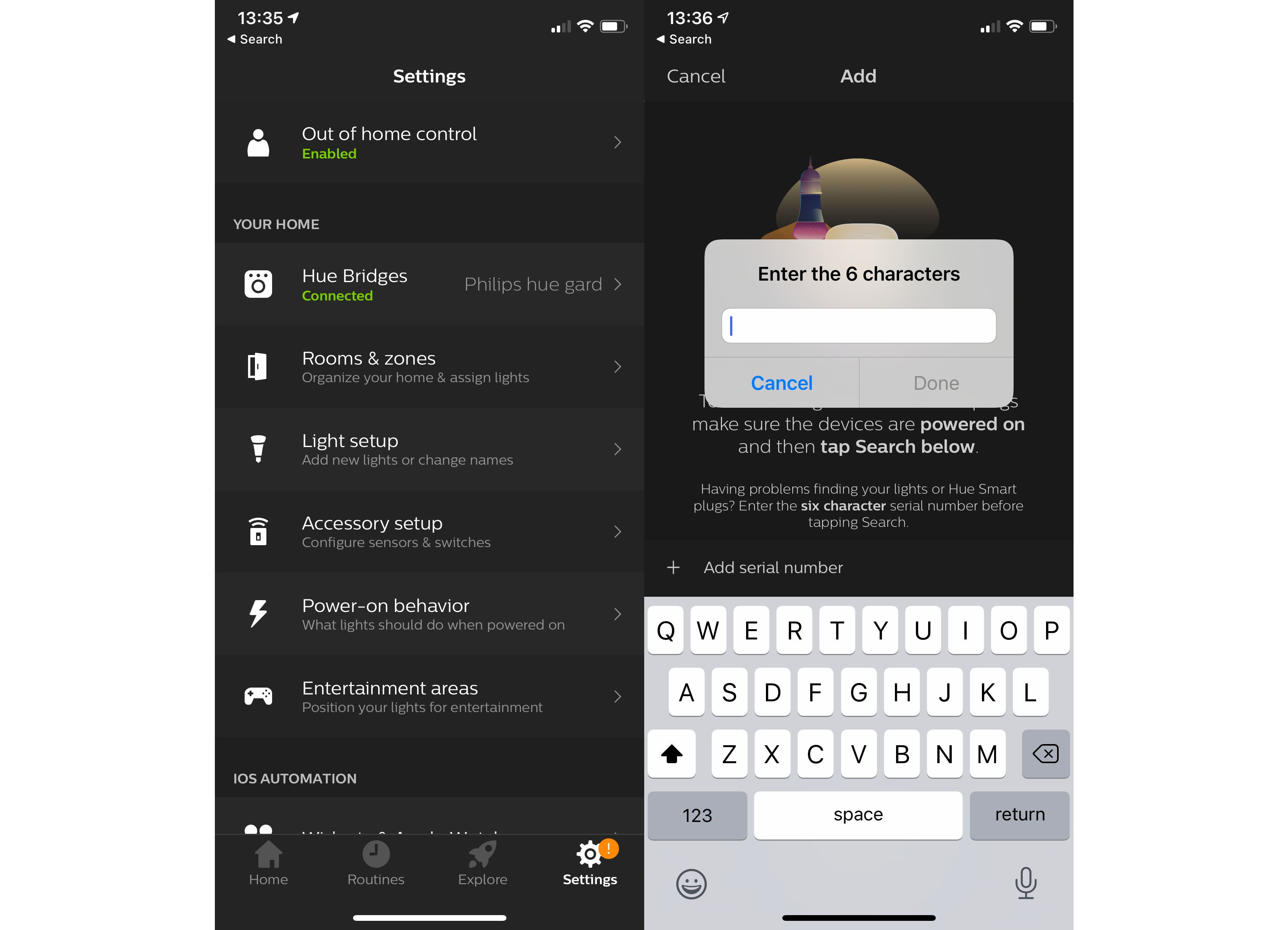
If these steps still don’t work, and you’ve only got one or two lights that don’t work, you may want to try resetting the bulbs following our advice. Once you’ve completed that step, you can turn any reset bulbs off and back on, then use the Hue app to re-add them.


You might like…


FAQs
It’s possible that a bulb is broken, and if these steps don’t fix it, then you may want to get a replacement.
[ad_2]
Source link





