


[ad_1]
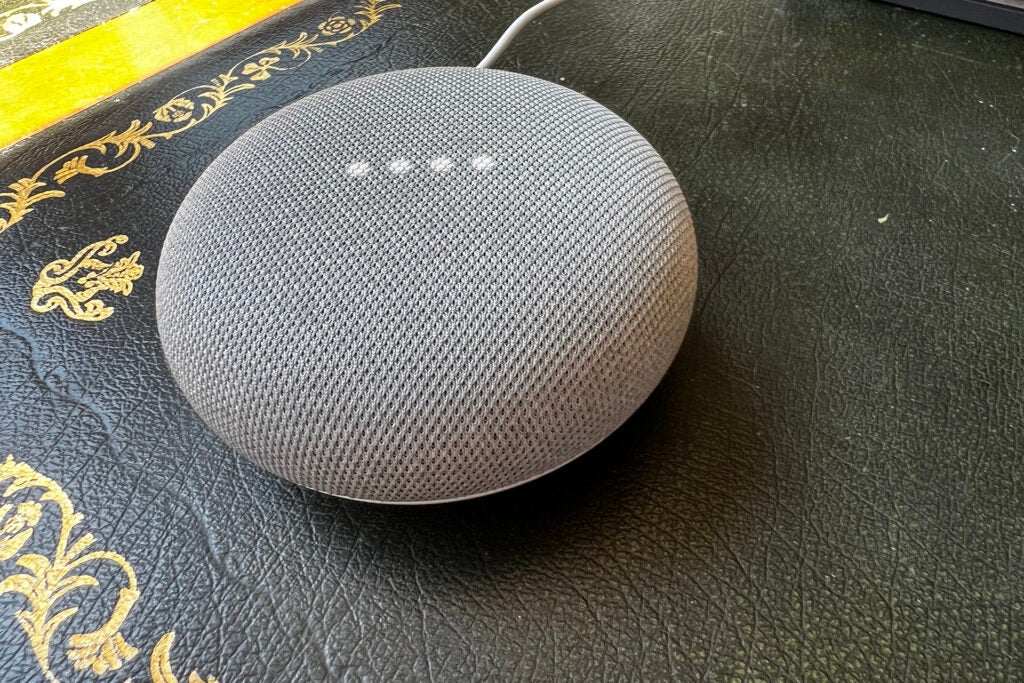
While they’re not so good for music, the Google Home Mini or Nest Mini are great little speakers to dot around your home for smart control, timers, answering basic questions and that kind of thing. Although there are two different speakers, both work in the same way and have the same features. Here’s what you need to know about setting them up.
First, a quick note about the differences. The Google Home Mini and Nest Mini look identical, except the newer Nest Mini has a wall anchor underneath, so that it can be wall-mounted, and uses a proprietary power connector rather than micro-USB. Both have the same features and the set-up routine is the same in both cases. Where there are minor differences between the two models, we’ve highlighted them.
What we used
These steps will work for any Google Home Mini or Nest Mini device.
The short version
- Reset your device
- Use the Google Home App to find your speaker
- Add speaker to a room
- Connect to Wi-Fi
- Set up Google Assistant
-
Step
1Reset your device
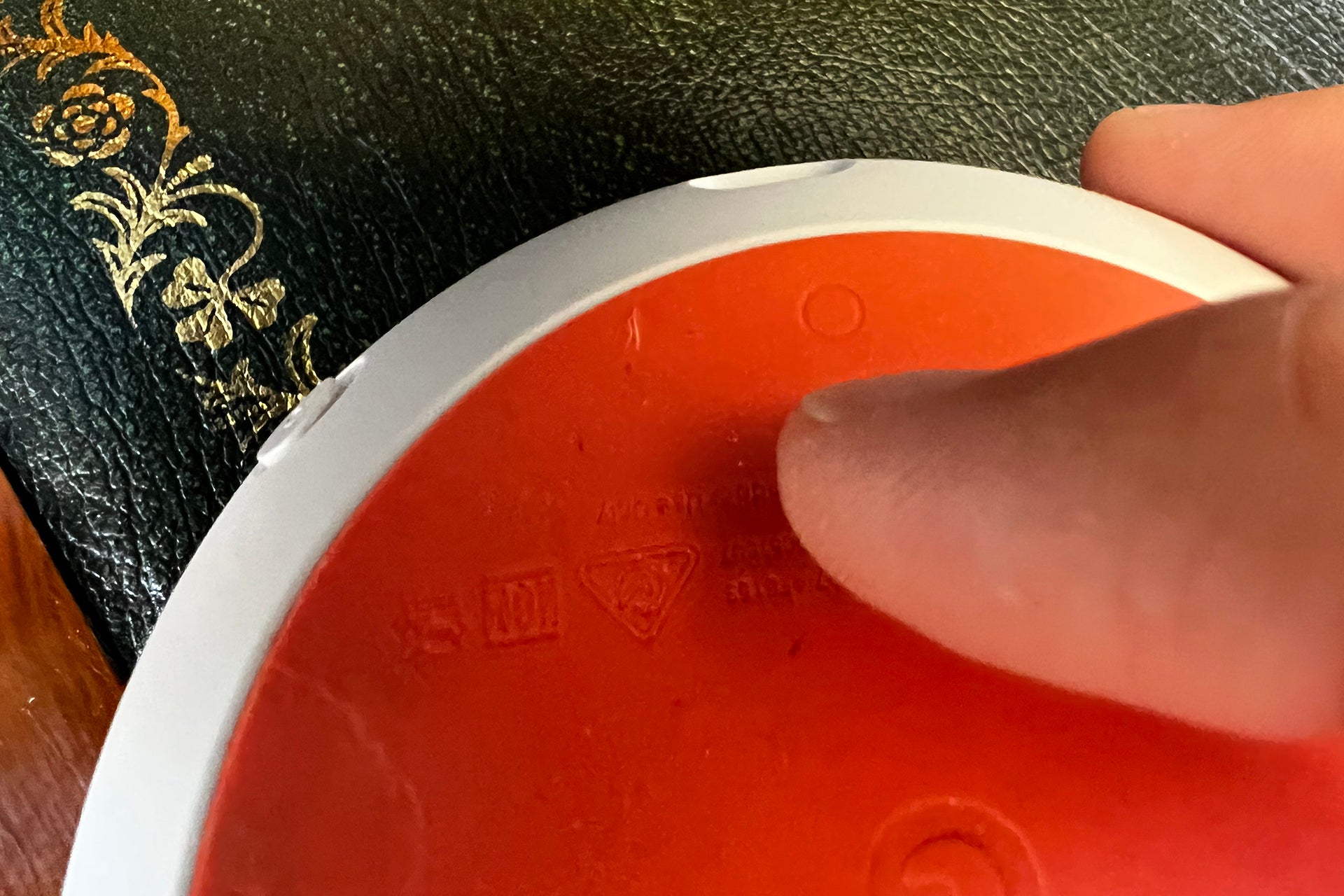
If you’ve bought a brand-new Google Home Mini or Nest MIni, then you can skip this step and just power your speaker on. If you’ve got an old device from a friend or second-hand, you may need to reset your device back to factory settings.
For the Google Home Mini, plug it in and let it start up. Turn the speaker over and you should see a small button. Press and hold this for ten seconds until a sound confirms that the speaker is resetting.
For the Nest Mini switch the mic off using the switch on the side. Then press and hold the centre of the speaker, where the lights are. Wait for 10 seconds until a sound confirms the reset procedure is going ahead. It will take up to a minute for the speaker to reset and reboot.
-
Step
2Use the Google Home App to find your speaker
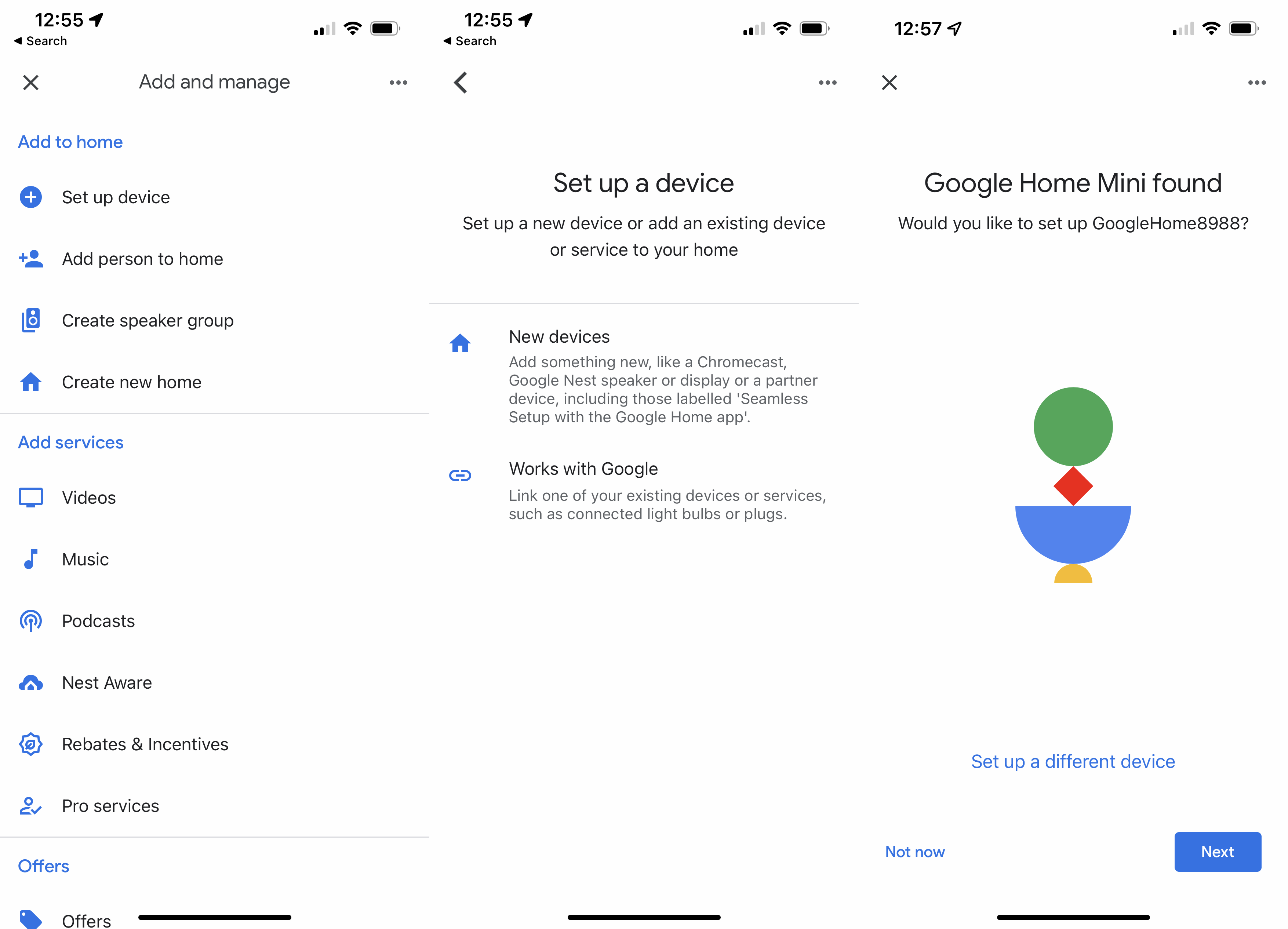
When your speaker powers up, it will speak and tell you that it’s ready to set up and you should download the Google Home app. If you don’t get this, then you need to reset the speaker, as in Step 1.
With your speaker powered on, and ready to go, you can open the Google Home App on your smartphone. Hit the ‘+’ icon a the top, then hit Set up a device, New devices, and select the home you want the device to be located in (Google supports multiple locations), tapping Next to confirm. Google will then look for any new devices near your phone. It should find your speaker, so tap Next.
-
Step
3Add speaker to a room
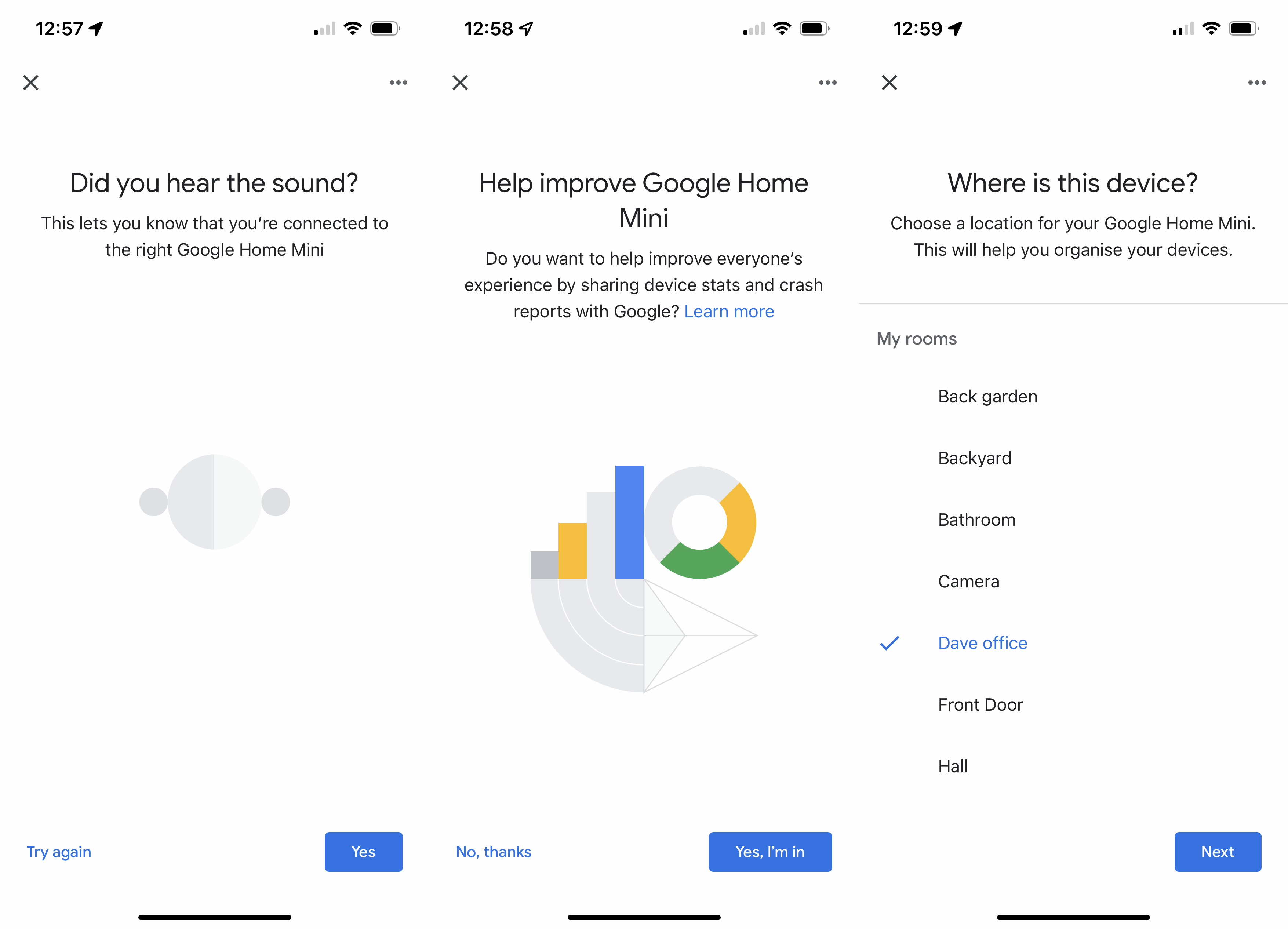
Google Home will connect to your speaker and make it play a sound. In the app tap Yes to confirm that you heard this. You can then follow the wizard through, confirming if you want to send analytics information to Google (we always select no), then you have to choose a room for the device to go in and hit Next. If you don’t have the room option that you want, you can scroll down the list and add a new one.
-
Step
4Connect to Wi-Fi
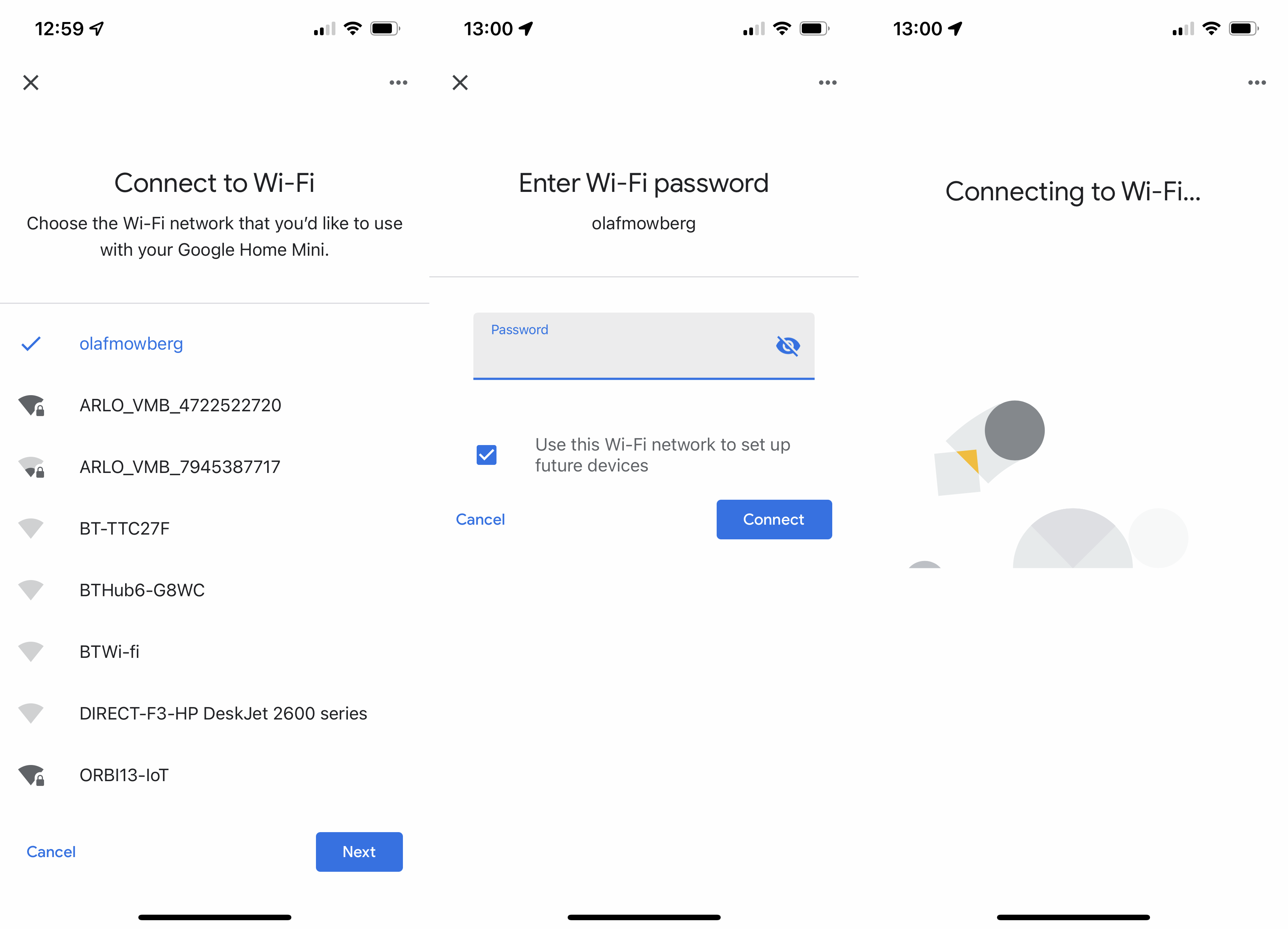
You’ll then be prompted to connect the speaker to your Wi-Fi network. Once you select your network from the list, tap Next and then enter its password, then tap Connect. You’ll see a ‘Connecting to Wi-Fi message’ for a few seconds before the speaker makes its connection.
-
Step
5Set up Google Assistant
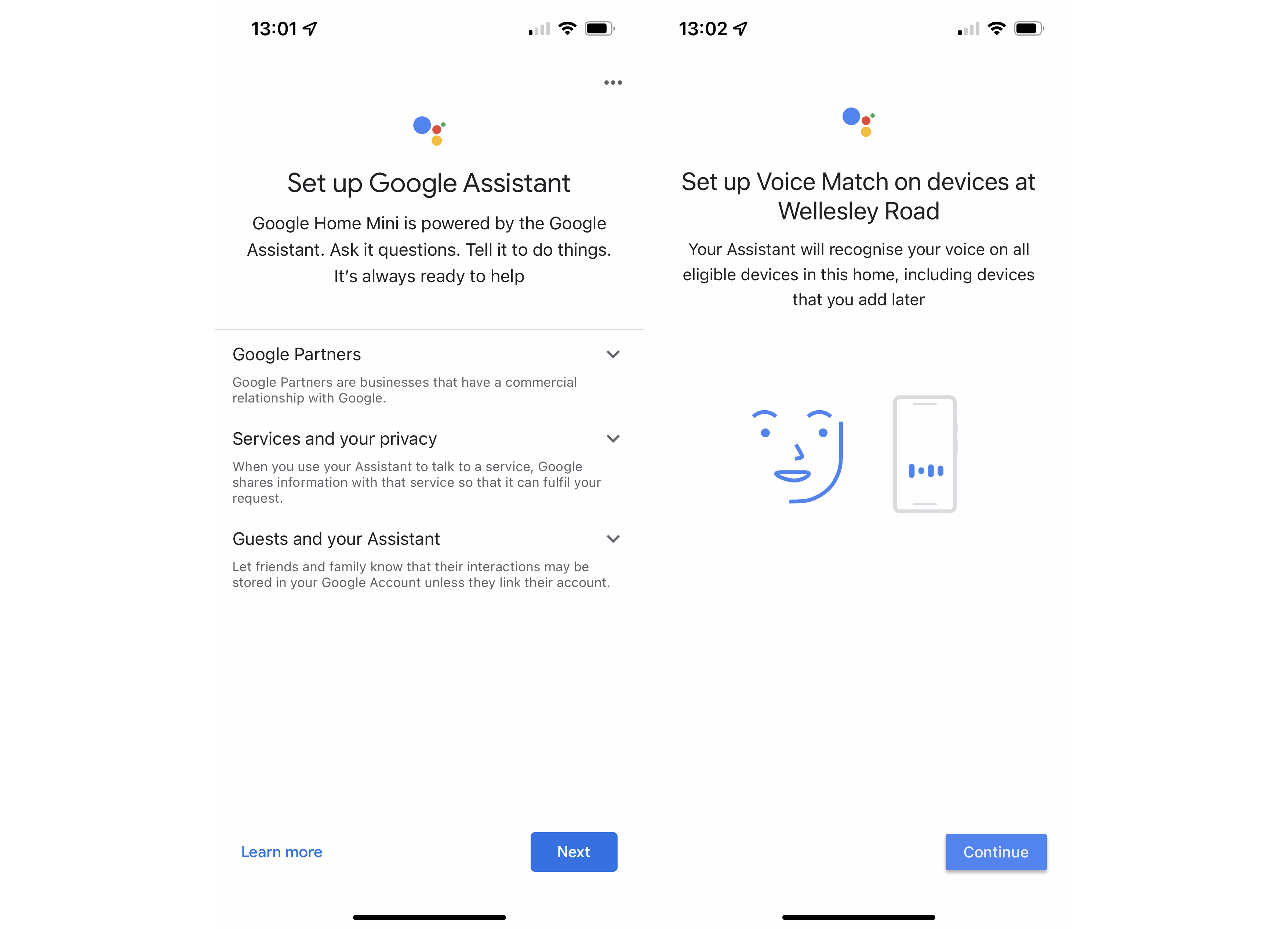
With the speaker connected to your home network, you’ll be prompted to set up the Google Assistant. Tap Next on the first screen. You’ll be asked to set up Voice Match, which is the feature that the Google Assistant uses to recognise you over other people in your home. With this turned on, each Google speaker in your home can deliver personalised responses, such as events from your calendar. Tap Next and I Agree and then follow the wizard through to complete the installation.
-
Step
6Set up optional services
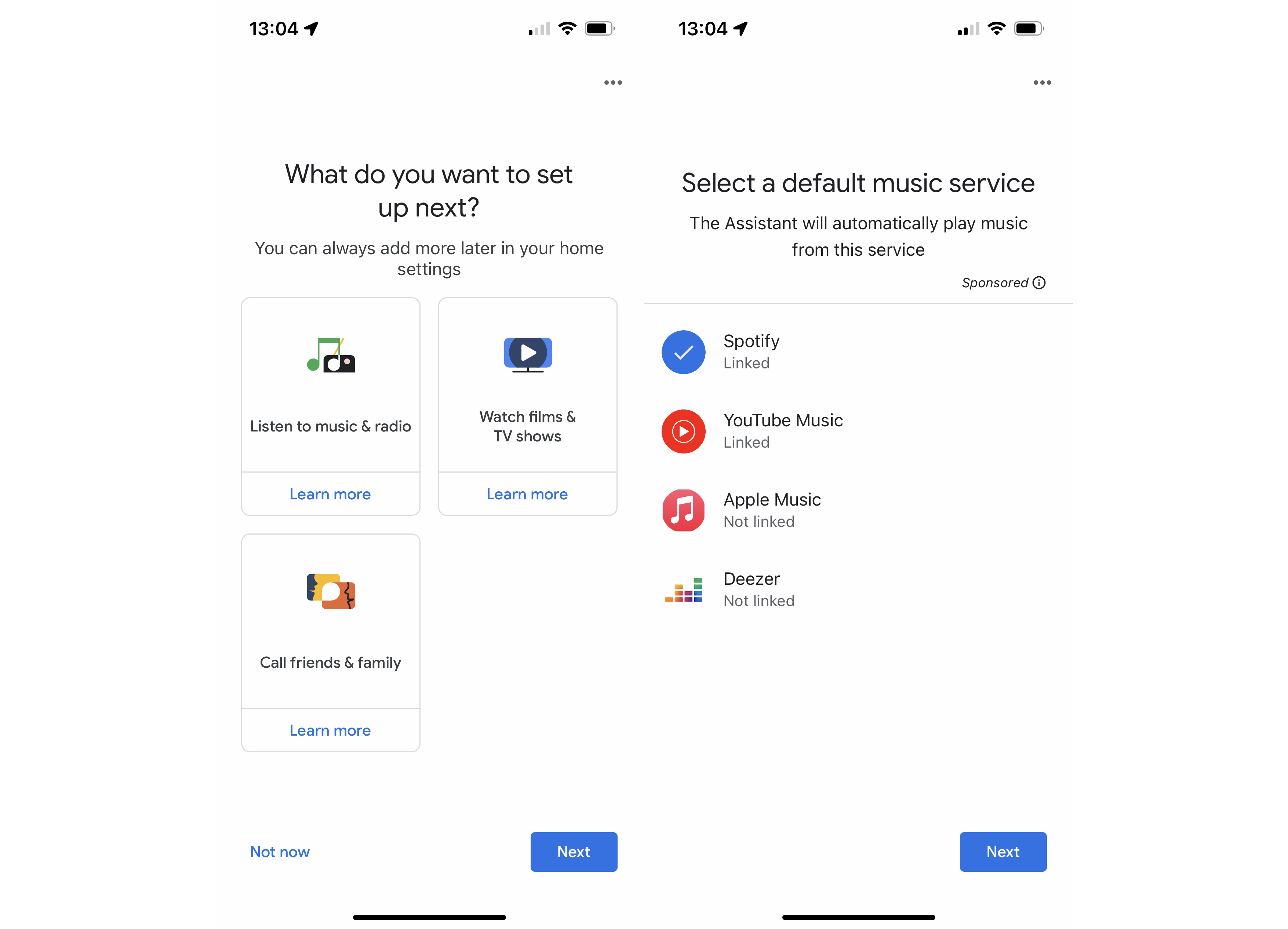
Next, Google will ask you if you want to set up other settings, including music and radio services, film and TV shows and friends and family calling (Duo). You can configure any option you want now, say setting Spotify as your default music service, or you can skip and set up these options later. Once finished, your speaker is ready to go and you can start to control your smart devices and ask general questions.


FAQs
In terms of the Google Assistant, there are no differences; there are a few cosmetic differences between the speakers, such as the Nest Mini having a wall anchor for wall-mounting.
You might like…

[ad_2]
Source link





