Blogger Advance
No Result
View All Result
Wednesday, March 4, 2026
  • Login
  • Home
  • Business
    • Marketing
    • Economy
    • Politics
    • Investing
    • Markets
  • How To
    • Blogger
    • WordPress
  • Tools
  • Software
    • Android OS
    • Windows
    • Mac Os
  • Indo
Blogger Advance
  • Home
  • Business
    • Marketing
    • Economy
    • Politics
    • Investing
    • Markets
  • How To
    • Blogger
    • WordPress
  • Tools
  • Software
    • Android OS
    • Windows
    • Mac Os
  • Indo
No Result
View All Result
Blogger Advance
No Result
View All Result
Home iOS

How to turn off macro mode on iPhone 13 Pro

Foxy by Foxy
July 27, 2022
in iOS, How To
Reading Time: 3 mins read
139 1
0
ADVERTISEMENT
Share on FacebookShare on Twitter

RelatedPosts

How To Create a Group in Discord on a Computer of Mobile Device

How To Stream a Nintendo Switch to Twitch

How To Get Absolute Value in Google Sheets

[ad_1]

When Apple introduced the iPhone 13 Pro and 13 Pro Max it added a macro mode in the camera app for the first time.

This new mode used the upgraded ultra-wide angle camera to allow you to pull out more detail from a close-up shot, however when the phone was first released there was no way to manually exit the mode, meaning it would kick into gear whenever you got close to a subject.

Thankfully, an update to iOS gave users a little more control over when macro mode kicks in, and while you can’t disable it completely, this guide will show you how to turn it off when you really don’t want it.

What you’ll need: 

The Short Version 

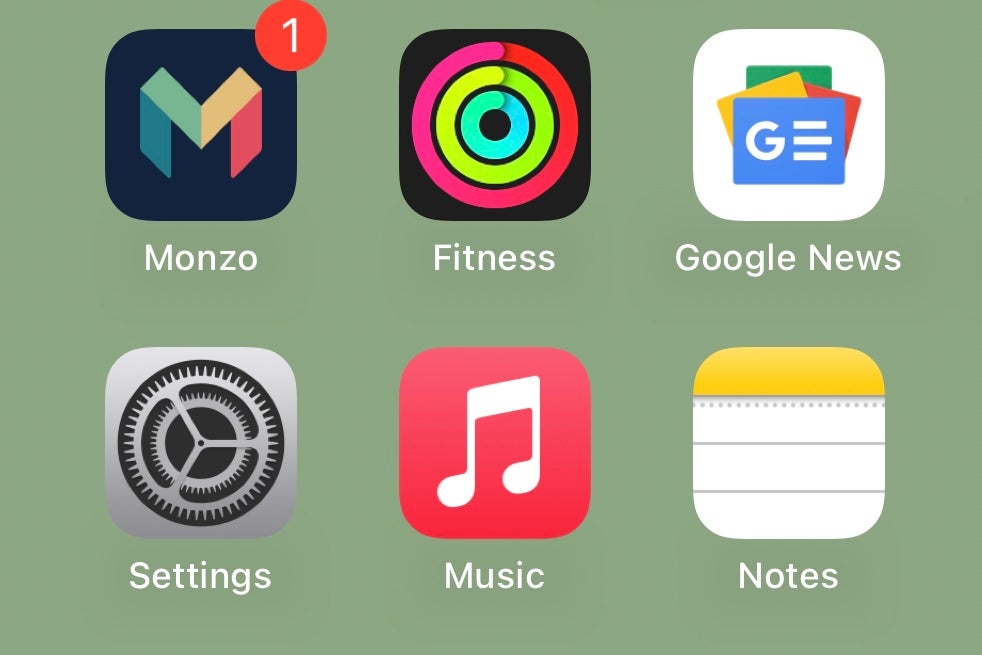
  • Unlock your phone and open Settings
  • Scroll down to Camera
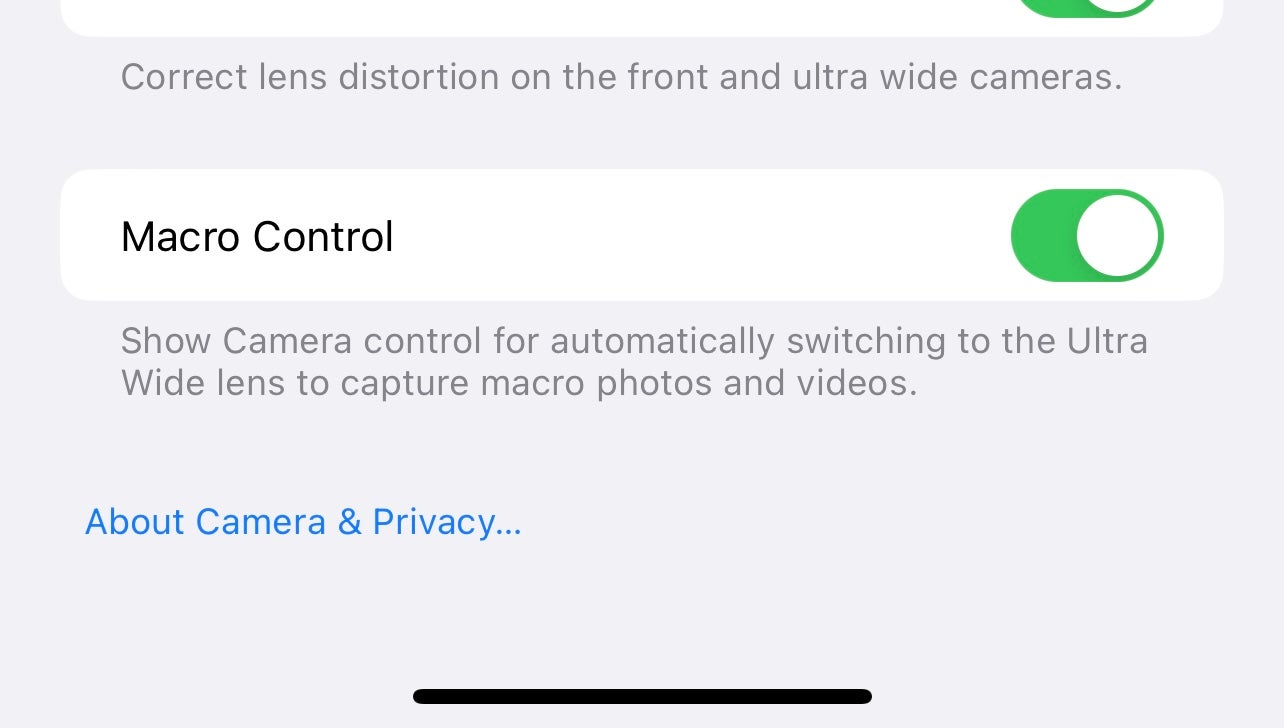
  • Scroll to the bottom and tick ‘Macro Control’
  • Head back into the Camera app
  1. Step
    1

  2. Unlock your phone and open Settings
  3. First off you’ll want to make sure your iPhone 13 Pro Max or iPhone 13 Pro is running the latest version of iOS. To check this open Settings > General > Software Update. Next, go back to the main menu in the Settings app. Unlock your phone and open Settings
  4. Step
    2

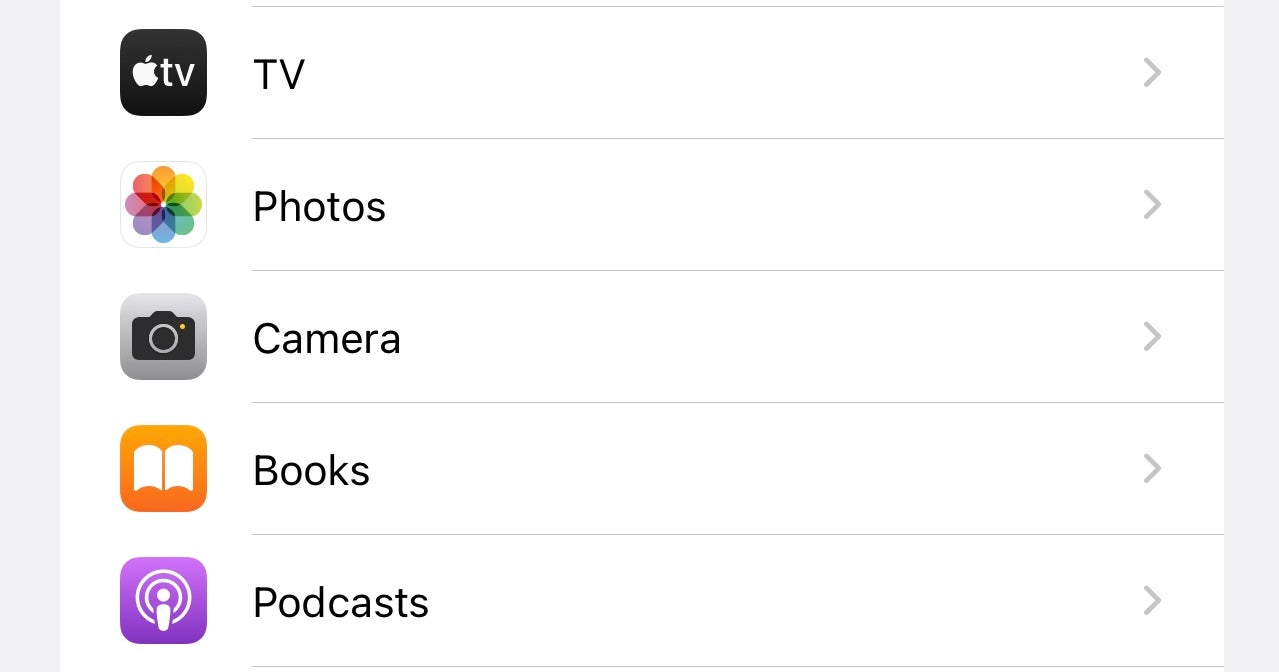
  5. Scroll down to Camera
  6. Swipe all the way down to the Camera option, and tap it.Scroll down to Camera

  7. Step
    3

    You’re now looking for the Macro Contol option in the Camera Settings page and it should be right at the bottom. By default this is off, but if you tap the slider then it should go green and turn itself on.Scroll to the bottom and enable Macro Control

  8. Step
    4

  9. Head back into the Camera app
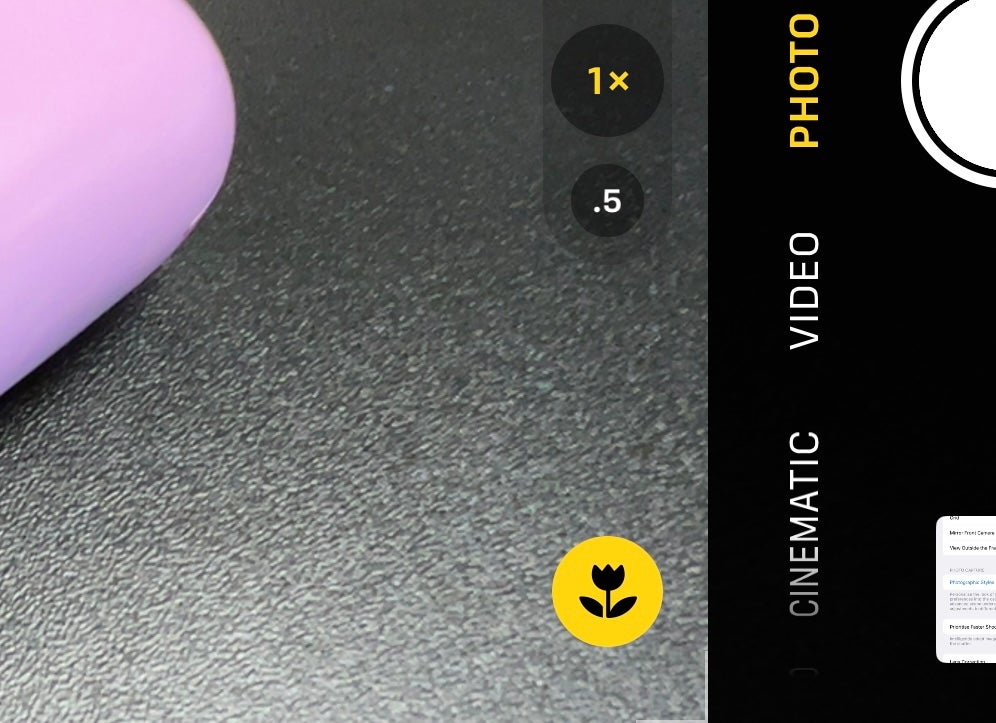
  10. Now you’ve enabled Macro Control you can go back into the camera app. When you get close to the subject you’ll now see a small flower symbol pop up which means macro mode has been activated. Simply tap the flower to disable the mode.Head back into the Camera app

Troubleshooting

Can the mode be turned off permanently?

No. You can turn the macro mode off on a per-image basis but you can’t completely disable it all of the time.

Does macro mode work on the iPhone 13 too?

This is a feature exclusive to the iPhone 13 Pro and its larger sibling, the iPhone 13 Pro Max. As such, it does not work on the iPhone 13 or iPhone 13 Mini.

[ad_2]

Source link

Advertisement. Scroll to continue reading.
ADVERTISEMENT
Share64Tweet40Send
Previous Post

How To Disable Show More Options in Windows 11

Next Post

How To Fix Error Code 0x8019019a with Yahoo Mail in Windows Mail

Foxy

Foxy

Discover the tactics, strategies, and tools you need to accelerate the growth of your blog. Click to visit

RelatedPosts

How To

How To Create a Group in Discord on a Computer of Mobile Device

August 29, 2022
2k
How To

How To Stream a Nintendo Switch to Twitch

August 28, 2022
2k
How To

How To Get Absolute Value in Google Sheets

August 27, 2022
2k
How To

How to censor explicit content on Spotify

August 27, 2022
2k
How To

How to Cite a Picture in PowerPoint

August 27, 2022
2k
How To

How to change your PS4 name

August 27, 2022
2k
Next Post

How To Fix Error Code 0x8019019a with Yahoo Mail in Windows Mail

Leave a Reply Cancel reply

Your email address will not be published. Required fields are marked *

  • Trending
  • Comments
  • Latest

How To Fix Sudo: apt-get: Command Not Found

August 9, 2022

Healer’s MIUI 12.5 for MI 8 Lite – PLATINA Mi 8 Lite

June 17, 2022

How to watch the Star Wars films and TV shows in the right order

August 9, 2022

Why Are Gas Prices Going Down?

August 9, 2022

5 Skills You Should Leave Leadership Training With

2

How to Change Your Username on Fortnite

2

20 Effective Ways to Automate and Grow Your Business

2

What is an SBA 7 (a) Loan?

2

Led by base effect & services pickup, Q1 GDP growth seen in double digits

November 5, 2022

Flexible workspaces, hours: PM for more women in labourforce

August 29, 2022

10 Online Business for Sale in August

August 29, 2022

How To Create a Group in Discord on a Computer of Mobile Device

August 29, 2022

Blogroll

AFC SOP JOGJA
JASA WEBSITE BALI
PELUANG BISNIS ONE MORE
PENGACARA DI BALI
AFC SOP SOLO
Lawyers In Bali
Rekomendasi Tempat Oleh - Oleh Khas Bali
ONE MORE INTERNATIONAL

– Advertisment –

ADVERTISEMENT
Blogger Advance

© 2021 RuangService.Com - Desain by Webhostbali.Com.

Navigate Site

  • Home
  • Advertisement
  • Contact Us
  • Privacy & Policy

Follow Us

No Result
View All Result
  • Home
  • Business
    • Marketing
    • Economy
    • Politics
    • Investing
    • Markets
  • How To
    • Blogger
    • WordPress
  • Tools
  • Software
    • Android OS
    • Windows
    • Mac Os
  • Indo

© 2021 RuangService.Com - Desain by Webhostbali.Com.

Welcome Back!

Login to your account below

Forgotten Password?

Retrieve your password

Please enter your username or email address to reset your password.

Log In
Go to mobile version