

[ad_1]
Google Maps is great for a lot of things. You can get directions, explore different countries or landmarks, take a look at a new area with street view, advertise your business and even find out what the traffic will be like on your way to or from work. This tutorial will walk you through checking for traffic in Google Maps on your desktop and on your phone.
Google Maps is fairly simple to use on any device. But, GPS maps are no good if you can’t estimate how long it will take you to get somewhere or what routes to travel. Let’s get right into teaching your how to check for traffic using Google Maps.

Checking Traffic in Google Maps
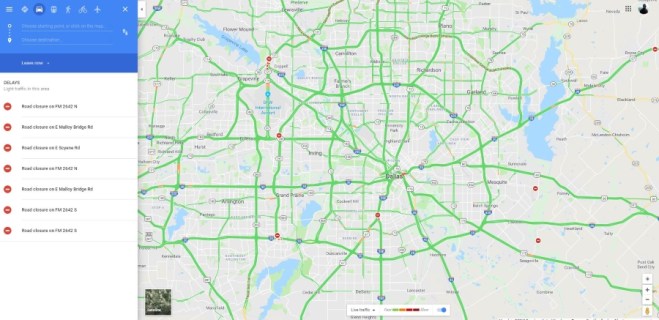
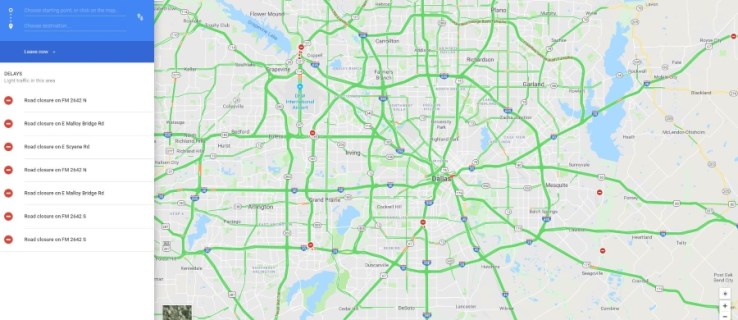
Before some recent updates, checking the traffic used to be a bit of a pain. Now traffic has been placed front and center on the map view and offers lots of details about the traffic conditions on your route. It will also show road closures and offer a colored guide to traffic levels in a given area.
Traffic has taken a much higher priority in Google Maps and that’s for the better.
Fortunately, it’s easy to see traffic in real-time on Google Maps. Here’s what you need to do:
On a Computer
- Go to the Google Maps website.
- Type in the location you’d like to travel to, then click ‘Directions.’

- Preview the route looking for any yellow or red breaks in the line.

On the App
- Open Google Maps on your smartphone or tablet.

- Input the location you’d like to travel to.

- Click ‘Directions’ at the bottom of the page.

- Preview the route.

Note: Notice the warning at the bottom of the map. Google Maps automatically provides information that may make travel difficult in a certain area such as weather.
You will see a detailed traffic analysis of the current time and place on the main map view. There is a color legend at the bottom, but essentially, green roads are okay for traffic while orange and red show congestion or heavy traffic. If you set a start and destination, your route options will also show these colors to give you an idea of what to expect. However, Google automatically chooses the fastest route.
Check Traffic Patterns
Another great function for smooth travel is knowing when you should travel. In the days of Rand McNally’s and MapQuest, we pretty much knew to avoid major cities during morning and evening rush hour. But today, Google will give you the busiest times for nearly any roadway based on an average of congestion.
All you need to do is input your destination just as we did above and click ‘Directions.’ At the bottom of the screen, tap on ‘Steps.’

From here, you can see the busiest times to travel the roads Google Maps suggests to get you safely to your destination.

Check Future Traffic with Google Maps
This feature is ideal for planning a trip you know will leave at a certain time. If you’re not planning to leave for a little while, you can specify a travel time and Google Maps will do its best to forecast what the traffic will be like. This is a prediction so it won’t be exactly right but does seem to be fairly accurate.
On desktop:
- Set a start point and destination in Google Maps
- Select Leave Now in the blue part of the left menu and select Depart at to set a leave time or Arrive by to set a desired arrival time.
- Allow the map to update.

In Android:
- Set a start point and destination in the Google Maps app.
- Select the three-dot menu icon at the top and select Set Depart & Arrival Time.
- Set your time and allow the map to update.

This feature is also available on iOS but you select ‘Set Reminder to Leave’ instead for the prediction.
Just remember, Google Maps is predicting traffic from past behavior and cannot predict accidents, road closures, or the usual unforeseen things we see on our commute. Allow the map to update itself during your journey so you are alerted to any changes in your route. You can then get the app to take a detour or work around any serious delays.
Send Directions From Google Maps Desktop to Your Phone
Did you know you can plan a route on your desktop and then have Google send it to your phone? As long as you are signed in to Google on your phone, you can plan your route on the desktop and then have it beamed to your phone as if by magic. It’s a very neat feature that lets you plan it on the big screen and then use it on the portable one.
- Plan your route in Google Maps on your desktop.
- Select ‘Send directions to your phone’ from the left menu.
- Wait a little while for it to appear on your phone.
You should receive a notification on your phone when the route arrives and it should come up when you open the Maps app. Cool huh?
Frequently Asked Questions
Does Google Maps accurately report traffic?
Google Maps is generally very trustworthy regarding traffic patterns. In recent years, the app has become incredibly receptive to changing road conditions. The app will update constantly changing the arrival time, wrecks, and delays depending on what other Google Maps’ users are experiencing along your intended route.
You may have noticed that it has become increasingly difficult to shorten your drive time (if you’re competitive), this is because of Google Maps excellent algorithm. And, if Google Maps tells you to take an alternate route (like get off of the interstate and travel backroads for a bit) you might want to listen to avoid sitting still for a while.
Does Google Maps show road conditions?
Although Google Maps doesn’t alert you to specific road conditions, it will let you know if there are special weather statements or something that may affect your travel time. If you need to know whether roads are safe or not it’s best to contact your local Department of Transportation for road conditions updates.
[ad_2]
Source link





