

[ad_1]
Wires are an unfortunate byproduct of computing. Look behind the average desktop and you will see a mess of cables and wires connecting peripherals, power, printers and all sorts. That doesn’t mean you have to clutter up your desk too. A steady improvement in wireless peripherals means now is a great time to go wireless.

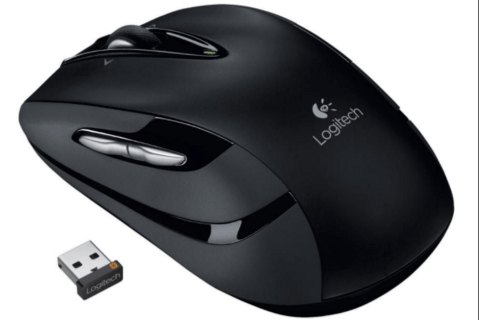
A wireless mouse is typically made up of a couple of components. The mouse itself which will contain a battery and a wireless adapter, usually USB. The mouse sends signals to the adapter which forwards it to Windows to follow the command. It is a simple setup that works well most of the time.
If you’re having issues with your wireless mouse, this tutorial is for you. It covers how to troubleshoot a wireless mouse in Windows and will have you up and running again in no time!
Troubleshooting a Wireless Mouse
Symptoms of a wireless mouse having issues will be erratic movement, the desktop cursor jumping or jerking around, the cursor not moving properly, or even not moving at all. All of these can be addressed with one or other of these fixes. This tutorial assumes the wireless mouse was working fine for a while and then suddenly began having issues.
Change the Surface the Mouse is On
Even optical mice can sometimes have an issue with the surface they are used on. It could be too glossy, too rough or not suitable. Try a different mouse mat, table, or even a book to see if a change of surface fixes the issue.
If the surface is too reflective or certain patterns, then you’ll have issues with your wireless mouse. Another problem could be the color of the surface. Colors such as red, cyan, purple, and flat black can interfere with movement tracking of the mouse.
Check the USB Dongle
Next, check that the USB dongle is in place and hasn’t been moved or shifted out of position. Optionally, remove it, wait a few seconds and put it into a different USB port. Allow Windows to pick it up and retest.
Upon inserting a USB device, Windows first looks for the drivers to operate/recognize it. A simple reinsertion of the device can fix minor, temporary issues that may arise in the Registry, etc.
Adjust the Mouse Battery
Most wireless mice will have a compartment underneath that houses the battery. Turn the mouse over and check that the battery is still there, in good condition and touching the terminal as it should. Take the battery out and make sure it is clean and free from debris and put it back.
Some wireless mice have On/Off switches underneath to help save battery. Check to make sure that yours is switched to On and didn’t get accidentally switched off.
Change the Battery
We checked that the battery was in place and free of dirt and debris earlier. Now, we have eliminated many common causes of wireless mouse issues, we should now look at changing the battery.
- Undo the compartment underneath the mouse, remove the battery and put in fresh ones.

If the mouse works, great, you’re done with troubleshooting. But, if it doesn’t you can leave the fresh batteries in place or put the old ones back in, either way, keep on reading to discover more tips to help fix the issue.
Clean Your Mouse
While it’s apart, you’ll also want to check that the ball or optical port is clean and free of dirt and debris.
- With the mouse off and the battery removed, loosen and remove the screws holding the mouse together, it’s usually only one or two.
- Next, carefully pull apart the mouse, you might need to use a plastic pry tool to undo the retaining clips on the inside of the mouse cover.
- Now, gently remove any debris and clean the mouse track wheel and internal components with a cotton ball, swab or microfiber cloth and some rubbing alcohol (only use a small amount).
- After letting the inside of the mouse dry for a few seconds, alcohol evaporates quickly, reassemble the mouse and then turn it back on.
- Finally, test it to see if everything is working properly.
Reboot Your Computer
Called a ‘3-pin reset’ in the trade, a full reboot of your computer can fix all manner of issues. If the mouse looks fine, reboot your computer to see if it recovers the mouse and begins working properly again. If not, continue troubleshooting.
Check Your Drivers
Driver issues are a common cause of hardware problems so that is a logical place to troubleshoot your wireless mouse. We will first let Windows perform a driver update and then install a driver manually if necessary.
Here’s how to check the drivers on Windows.
- Either type ‘dev’ into the Windows Search/Cortana box or right-click the Start icon and select Device Manager.

- Now, scroll down and select Mice and other pointing devices.

- Right click on your mouse and select Update driver.

- Allow Windows to automatically find a driver and install it.
If Windows doesn’t find a driver update, you could try a manual install.
- Navigate to the mouse manufacturer’s website and download the latest driver for your mouse.
- Install it on your computer and follow the instructions.
- Reboot if required and retest.
Try the Mouse on a Different Computer
The final troubleshooting task is to try the mouse somewhere else. If it worked fine and suddenly stopped working and nothing else has fixed it, it could be a hardware issue. The best way to test that theory is to use a different computer. This task is left until last as you will likely have to install the driver on the other computer and then remove it again once complete. While it doesn’t take long, it is a bit of a hassle.
Connect the wireless mouse to another computer, allow it to detect the new device and install the drivers. Manually install the driver if you prefer. Test the mouse.
It is likely that the mouse doesn’t work on the new computer if you followed all the steps in this guide. However, Windows being Windows, it isn’t beyond the realms of possibility that some internal issue is stopping the wireless mouse from working.
Mouse Troubleshooting
Unfortunately, hardware issues with your mouse can occur. Start with the simplest solution and then work your way down the list from there. However, never underestimate the power of a simple reboot or cleaning of your hardware, you’d be amazed at how much dirt and debris gets inside the mouse.
Did any of these suggestions work for you? Let us know in the comments below.
[ad_2]
Source link





